User Mode in Time Tracking Software for Agencies in the United States: What Team Leads Should Control and What Employees Should See
User mode in time tracking software is the set of permissions, views, and actions each person gets based on their role. For agencies in the United.
The HelloTime team
12 min read
On this page
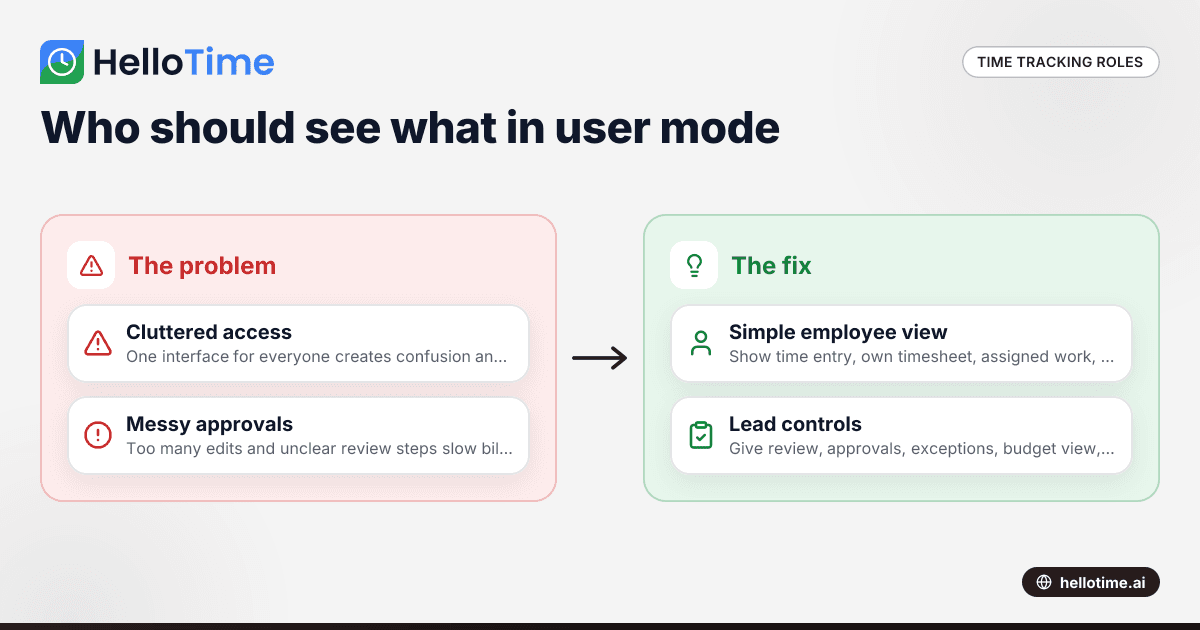
User mode in time tracking software is the set of permissions, views, and actions each person gets based on their role. For agencies in the United States, the best setup gives employees a simple place to track time and see only what they need, while team leads can review hours, fix exceptions, approve timesheets, and watch budget risk without seeing unnecessary HR or payroll details.
A clear user mode setup reduces confusion, protects sensitive information, and makes billing more accurate. It also helps agencies move faster because each person sees the right screen, the right tasks, and the right next step.
Key takeaways
- User mode time tracking software should match real roles, not just job titles.
- Employees need simple time entry, clear project visibility, and limited edits.
- Team leads need approval, exception handling, and budget oversight.
- Finance and HR data should stay restricted unless a person truly needs access.
- A strong setup improves billable accuracy, trust, and client invoicing.
- Agencies should review permissions often as teams, clients, and projects change.
What is user mode time tracking software?
User mode time tracking software means the system changes what people can see and do based on their role. In an agency, that usually means employees, team leads, department heads, operations, and finance each get different access.
This matters because agencies run on time, utilization, and client budgets. A designer in Chicago should not need to see company-wide labor reports. A team lead in Houston should not need access to private leave notes or finance settings. A finance manager may need approved billable hours for invoicing, but not every draft timer entry from every person.
Good user mode design does three things at once:
- It keeps time entry simple.
- It protects sensitive business data.
- It supports approval and billing workflows.
For agencies, this is not just a software preference. It affects project profitability, client trust, payroll readiness, and how quickly managers can act when hours drift off plan.
Why does user mode matter for agencies in the United States?
It matters because agencies in the United States often juggle multiple clients, remote staff, contractors, and hourly billing models. Even small teams can have complex workflows across account management, creative, development, strategy, paid media, and operations.
A poor setup causes common problems:
- Employees log time to the wrong client or task.
- Team leads spend hours chasing missing entries.
- Too many people can edit approved records.
- Sensitive pay and cost data is exposed too widely.
- Invoices go out late because timesheets are still a mess.
A better setup makes daily work cleaner. Each person opens the app and sees a focused workspace. Employees can start a timer, log hours, request leave, and review their week. Team leads can check missing time, approve or reject entries, and watch burn against budget. Operations can review utilization and scheduling. Finance can move approved billable time into invoices.
That separation is especially important if your agency uses QuickBooks or Stripe in the rest of its finance stack. Clean source data makes every downstream step easier.
What should employees see?
Employees should see only the tools they need to track time correctly and complete the week on time. If the screen is cluttered, time tracking becomes a chore and compliance drops.
A good employee view usually includes:
1. A simple timer and manual time entry
Employees need a fast way to start and stop work. They also need to add time manually when they forget the timer or switch devices.
Keep the fields short and clear:
- Client
- Project
- Task or service
- Billable or non-billable status
- Notes
- Duration or start and end times
For many agencies, one-click start and stop is enough for most entries. Manual edits should be allowed within a defined time window.
2. Their own weekly timesheet
Employees should always see:
- Total hours this day
- Total hours this week
- Missing entries
- Draft versus submitted status
- Overtime warnings if your internal policy tracks them
- Billable versus non-billable split, if helpful
This helps people self-correct before a manager has to chase them.
3. Assigned clients, projects, and tasks
People should log time only against work they are assigned. This reduces coding errors and protects client confidentiality across accounts.
For example, a paid media specialist should not browse all agency projects. They should see only the client accounts and tasks relevant to them.
4. Leave balances and requests
If time tracking and leave sit together, employees should be able to request time off and view balances that apply to them. They should not see leave details for other employees.
5. Basic personal history
Employees should be able to review their own submitted and approved time entries. This builds trust and makes corrections easier.
What should employees not see?
Employees usually do not need access to wider management data. The more extra information they see, the more likely the system becomes confusing or risky.
Keep these areas restricted unless there is a clear business reason:
- Other employees' timesheets
- Company-wide utilization reports
- Project cost rates
- Client budget margins
- Invoice settings
- Approval rules
- Admin settings
- Private leave details
- Sensitive employee records
This is where a clean ai user mode concept can help. If the system can tailor screens by role, employees get fewer distractions and better accuracy. The goal is not to hide useful information. The goal is to show only what helps them do their job well.
What should team leads control?
Team leads sit between delivery and management. They need enough control to keep projects on track, but not so much access that they become accidental admins.
In most agencies, team leads should control four main areas.
1. Timesheet review and approval
Team leads should be able to:
- Review submitted time for their direct reports or project team
- Approve or reject timesheets
- Request corrections
- See missing time alerts
- Lock approved records from casual edits
Approvals should happen weekly or at another set cadence. Without a clear approval step, billing data stays unreliable.
2. Project and budget visibility
Team leads should see the project data needed to manage delivery:
- Hours used versus budget
- Billable versus non-billable time
- Time by person, task, or project phase
- Burn rate trends
- Upcoming deadlines or allocation risk
This is where user mode time tracking software becomes a management tool, not just a timer. Team leads can spot when a website redesign in Detroit is running too many unplanned revision hours before the overrun hits the invoice.
3. Limited editing rights
Team leads often need to fix obvious mistakes, such as the wrong project code or a missing note. But those edits should be controlled.
A practical policy is:
- Employees can edit drafts freely.
- Team leads can correct submitted entries with an audit trail.
- Approved entries require a higher-level reopen action.
This keeps records clean without letting historical data drift.
4. Team workload visibility
Team leads should be able to see who is overloaded, who has room, and where work is stuck. This is useful for both current projects and future planning.
That view may include:
- Scheduled work or allocations
- Current weekly hours
- Leave conflicts
- Gaps in staffing by skill set
For agencies, this is especially important when deadlines stack up across several clients at once.
Which controls should stay with admins, operations, or finance?
Some controls should stay outside the team lead role. That protects privacy and avoids accidental changes with broad impact.
Admin-only controls
These often include:
- Company settings
- Permission templates
- User provisioning
- Data exports with sensitive detail
- Audit settings
- Organization-wide policy rules
Operations controls
Operations leaders may need:
- Cross-team utilization reports
- Resource planning views
- Department-level staffing reports
- Schedule or roster controls
Finance controls
Finance should usually own:
- Bill rates
- Cost rates
- Invoice generation
- Client billing exports
- Revenue and profitability reports
- Final approved billable time workflows
If your agency invoices from approved hours, finance needs trustworthy data, not broad editing power over every raw entry. Separation of duties matters.
What does a good role setup look like?
A good setup gives each role one clear job in the workflow. Employees log. Team leads review. Operations plan. Finance bills. Admins maintain the system.
Here is a practical role model for a mid-sized agency in the United States.
Employee
Can:
- Track time
- Edit drafts
- Submit timesheets
- See own history
- Request leave
Cannot:
- Approve own time
- View other employees' records
- See bill rates or margins
- Change company settings
Team lead
Can:
- View team time
- Review missing entries
- Approve or reject submissions
- Edit limited fields with audit trail
- View project budget progress
Cannot:
- Change organization settings
- See private HR fields
- Access all finance reports
- Approve their own exceptions without oversight
Department head or operations manager
Can:
- View cross-team reports
- Watch utilization
- Reassign work
- See schedule conflicts
- Escalate approval bottlenecks
Cannot:
- Change sensitive finance settings unless assigned
Finance manager
Can:
- Pull approved billable time
- Review invoice-ready hours
- Check revenue by client or project
- Export billing data
Cannot:
- Change delivery approvals casually after close
Admin
Can:
- Set up users
- Assign permissions
- Maintain workflows
- Manage system-wide controls
This kind of structure keeps the software understandable. It also makes onboarding easier for new hires and temporary staff.
How should agencies decide who gets what access?
Start with workflows, not software menus. Many agencies assign permissions based on job title alone. That causes trouble because titles vary widely.
Use this process instead.
1. Map the real actions in your weekly cycle
Write down what happens each week:
- Who tracks time
- Who checks missing hours
- Who approves
- Who monitors budgets
- Who invoices
- Who handles leave conflicts
This reveals the actual handoffs.
2. Group people by responsibility
Create role groups based on actions, not prestige. For example:
- Individual contributor
- Team lead
- Project manager
- Operations
- Finance
- Admin
Some people may hold two roles. Keep that intentional and limited.
3. Define view, edit, approve, and export rights separately
These are different powers. Someone might need to view project budget reports but not export all data. Someone might approve team timesheets but not edit cost rates.
4. Set exceptions carefully
Agencies often need temporary access during launches, audits, or staff leave. Put end dates on exceptions. Review them later.
5. Review quarterly
Clients change. Teams grow. Managers switch. A permission model that worked in January may be too loose by 10/08/2026.
How do you keep approvals fast without losing control?
Use narrow approval rights, deadline reminders, and simple exception handling. Team leads should approve only their people or projects, with a clear cutoff and audit trail. Keep edits limited after approval so finance can trust the numbers and invoices do not stall.
Speed matters because agencies close work weekly, not once a quarter. But control matters because approved hours become the basis for client billing, utilization reporting, and internal planning.
Here are practical ways to balance both:
Set a fixed weekly rhythm
A common flow looks like this:
- Employees submit by end of day Friday.
- Team leads review on Monday morning.
- Corrections are completed the same day.
- Finance uses approved billable time after that.
Pick your own cadence, but make it predictable.
Use exception queues
Team leads should not scan every entry manually. They should see a queue for:
- Missing time
- Entries with no notes
- Hours logged to closed projects
- Unusual spikes
- Entries edited after submission
This speeds up approvals while keeping risk visible.
Lock records after approval
Approved entries should not be casually changed. If a change is needed later, require a reopen flow and preserve an audit history.
Keep self-approval off by default
If a team lead also tracks billable work, their own timesheet should go to another approver. This helps avoid disputes later.
Should agencies use AI to tailor user mode?
Yes, but carefully. AI should simplify what each person sees, surface likely errors, and reduce clicks. It should not make hidden approval decisions without clear human review.
For example, an ai user mode approach could help by:
- Showing employees their most-used projects first
- Suggesting likely task codes based on past entries
- Alerting team leads to missing notes or odd spikes
- Highlighting budget risk before approval
- Reducing menu clutter by role and behavior
That said, agencies still need clear permission rules set by humans. AI can improve the experience, but it should not replace access controls, approval policy, or management judgment.
What mistakes do agencies make with user mode time tracking software?
The most common mistake is giving everyone too much access in the name of flexibility. That sounds helpful at first, but it usually creates messy data and extra questions.
Other common mistakes include:
Using one role for everyone
This forces employees, leads, and finance into the same interface. It slows everyone down.
Letting approved records stay editable
If approved billable time can change freely, invoicing becomes risky and client disputes become harder to resolve.
Hiding too much from employees
Employees need enough visibility to fix their own errors. If they cannot see weekly totals or submission status, managers end up doing unnecessary follow-up.
Mixing HR privacy with project visibility
A team lead may need to know someone is unavailable, but not the private reason behind a leave request.
Skipping permission reviews
People change teams. Contractors come and go. Old access often lingers unless someone owns the cleanup.
How can HelloTime support a cleaner role-based setup?
HelloTime can help agencies centralize time tracking, approvals, leave, scheduling, billable workflows, and reporting so each role sees a cleaner daily workspace. That makes it easier to keep employee actions simple, give leads the right review tools, and avoid broad access that creates confusion.
For agencies that want one place for time tracking, approvals, scheduling, attendance, leave, invoicing from billable hours, and profitability reporting, role-based access matters. A platform like HelloTime can help centralize those workflows so employees get a simple daily experience while leads and managers get the review tools they actually need. You can explore the available features if you want to see how those workflows fit together for a United States team.
How should you roll this out to your agency?
Start lean, pilot with one team, and review where people get stuck. Good rollout means each role gets only the views and actions it needs, then you tighten or expand access based on actual use.
A good rollout is more about clarity than training hours. People adopt time tracking faster when the system feels obvious.
Step 1: Decide the minimum each role needs
Start lean. You can always expand access later.
Step 2: Clean up clients, projects, and task lists
Bad project structure ruins even the best permission model.
Read next
This article covers one part of a bigger topic. For the complete picture, read our guide to user mo.
Keep reading
Related articles
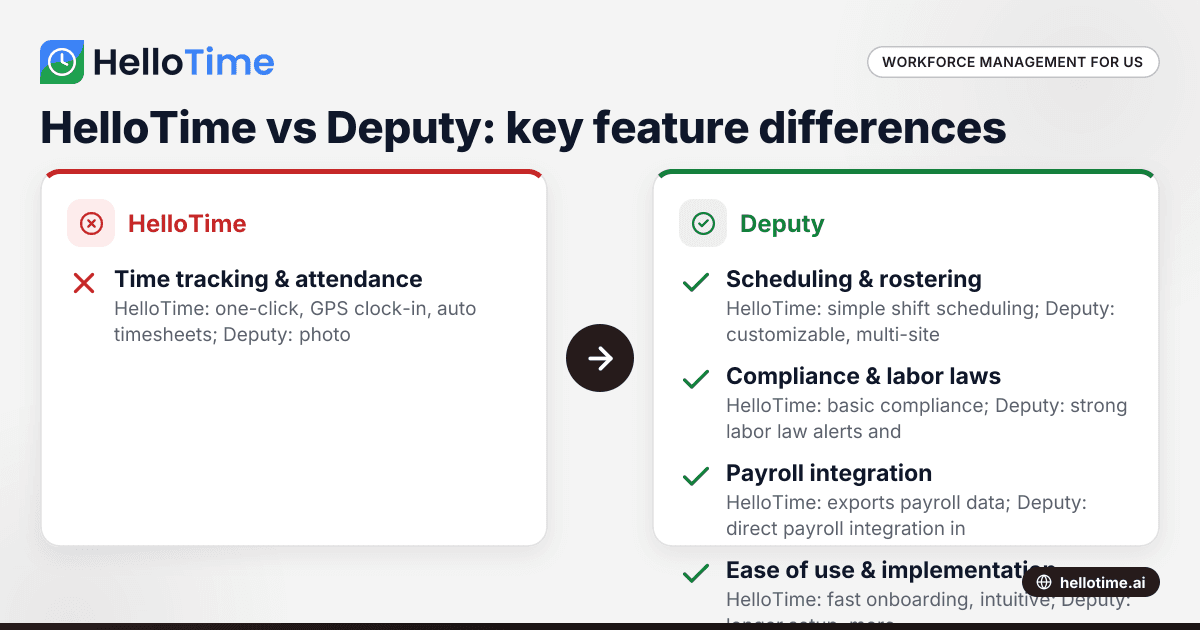
HelloTime vs Deputy: Which Workforce Management Software is Best for United States Small Businesses?
HelloTime and Deputy are popular workforce management tools offering employee scheduling, time tracking, and attendance solutions for US small.
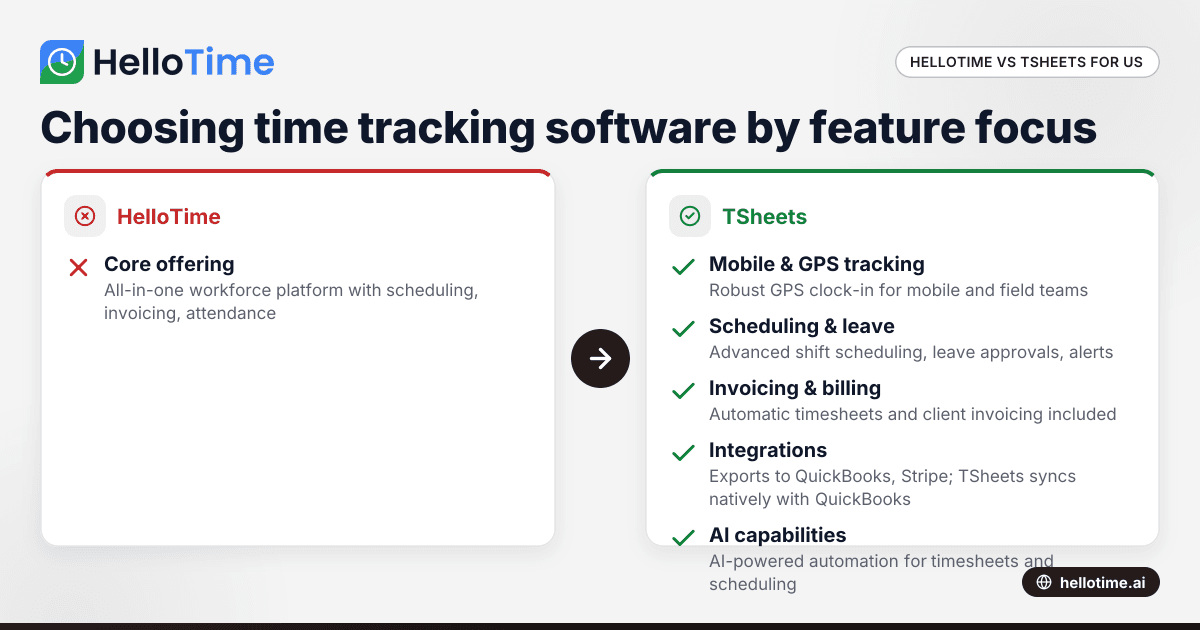
HelloTime vs TSheets: Choosing the Best Time Tracking Software for United States Agencies
HelloTime and TSheets are popular time tracking solutions for agencies and professional services in the United States. Comparing HelloTime vs TSheets.
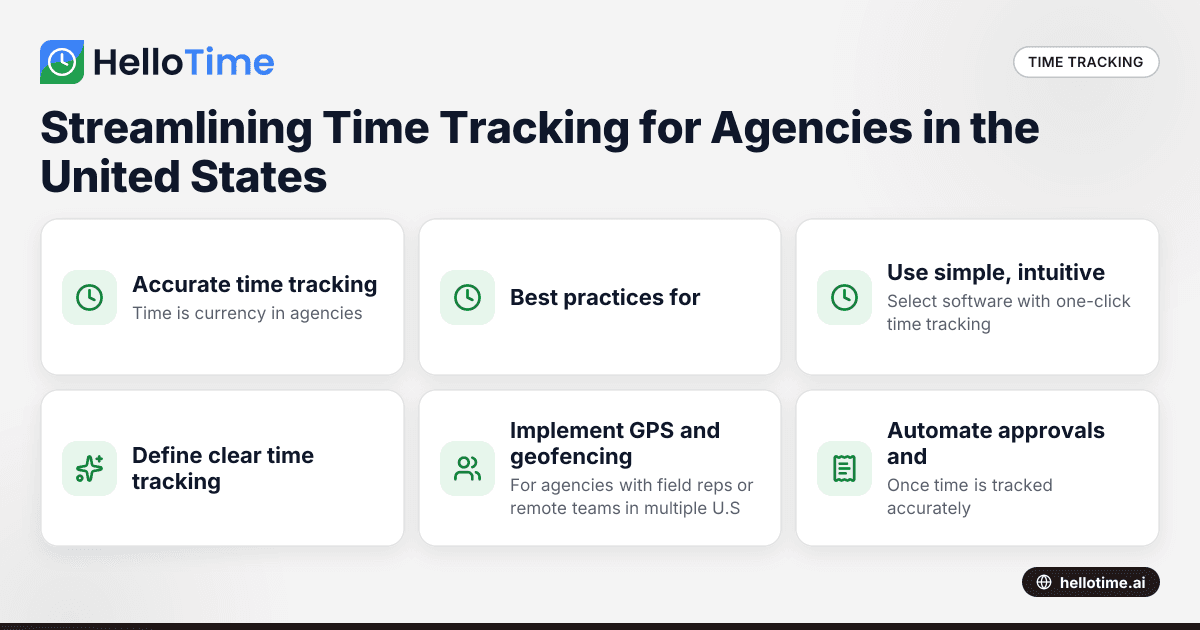
Streamlining Time Tracking for Agencies in the United States: Best Practices to Boost Client Billing Accuracy
Streamlining time tracking for agencies in the United States is essential for ensuring accurate client billing and maximizing profitability. By.