User Mode in Time Tracking Software for United States Agencies: Customizing Access for Client Billable and Internal Projects
User mode in time tracking software customizes access and permissions based on employee roles. In US agencies, it separates client billable work from.
The HelloTime team
5 min read
On this page
User mode in time tracking software customizes access and permissions based on employee roles. In US agencies, it separates client billable work from internal projects, improving accuracy and protecting sensitive data.
Key takeaways
- User mode allows agencies to assign distinct access levels for employees.
- Separates billable client hours from internal, non-billable time.
- AI user mode adapts tracking and interfaces based on user role.
- Helps streamline approvals, reporting, and compliance in US agencies.
- Limits errors and secures sensitive billing and attendance data.
- Supports GPS and kiosk clock-ins selectively by user group.
What is ai user mode in time tracking software?
AI user mode dynamically adjusts user access and interface elements based on roles using artificial intelligence. It improves accuracy by suggesting correct project categories and speeding up approvals. This results in more efficient, error-free time tracking tailored to employee needs.
AI user mode helps US agencies reduce manual errors and customize workflows. It recognizes behavioral patterns to prompt relevant tasks and ensures billable hours are properly logged without confusion.
How do I set up user modes for client and internal projects?
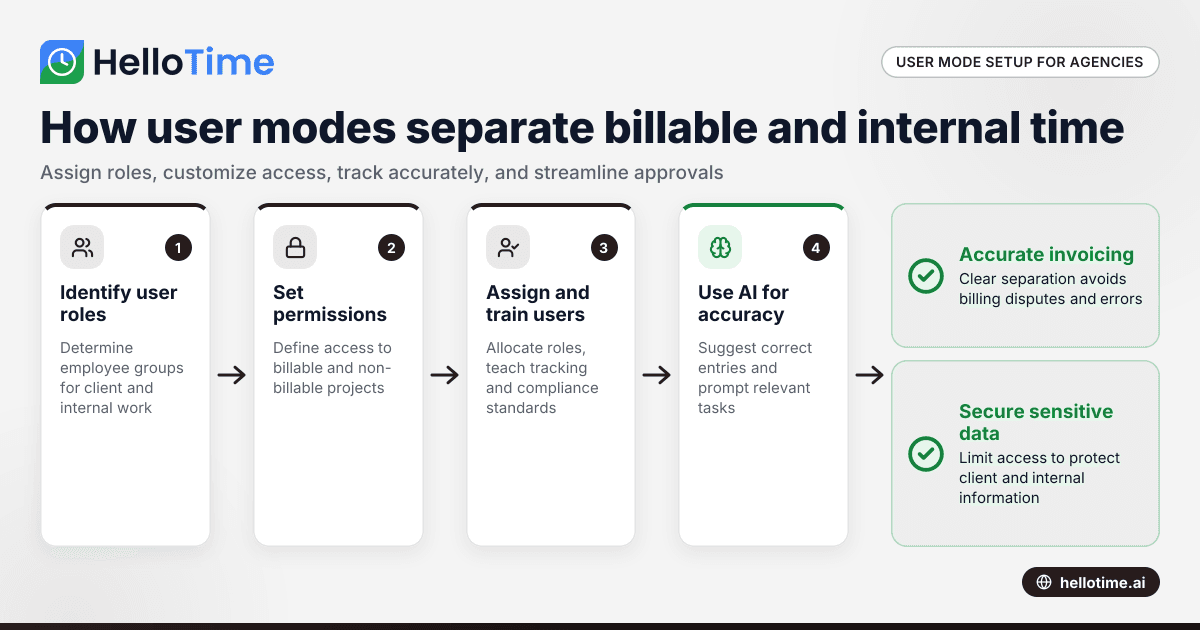
Setting up user modes involves creating separate groups with defined permissions and project access. Assign client-facing staff access to billable projects, and internal teams access to administrative or non-billable work. Mapping roles correctly prevents time entry errors and enforces security.
Key steps include: identifying user roles, defining permissions, configuring feature access, assigning users, training staff, and auditing regularly. Tools like HelloTime enable easy user mode setup tailored for US agency workflows.
Why do agencies need different user modes for client and internal projects?
Different user modes prevent mixing billable hours with internal time, ensuring precise invoicing and protecting confidential client data. Agencies in places like Chicago or Houston often handle multiple clients and internal initiatives simultaneously. User modes guarantee proper segregation to avoid billing disputes.
User modes also assign appropriate approval responsibilities and enable tailored reporting by project type, critical for compliance with US billing and labor standards.
How can ai user mode improve time tracking efficiency?
An ai user mode analyzes user behavior and project data to suggest or auto-assign billable hours accurately. It flags inconsistent entries for supervisors, reducing manual review time. AI-powered prompts adjust the interface to show relevant timers and reports per role, enhancing usability and accuracy.
This technology empowers US agencies to balance automation with control while maintaining data integrity across diverse teams.
What are best practices for managing client billable versus internal projects?
Follow these guidelines:
- Use user modes to separate access by project type.
- Assign clear project codes marking billable vs. non-billable.
- Enable approval workflows fitting project categories.
- Regularly audit time entries for classification accuracy.
- Integrate with QuickBooks or Stripe for seamless invoicing.
- Train employees on time logging standards and software use.
Proper management reduces errors and strengthens project profitability in compliance with US billing rules.
Can user modes control GPS and kiosk clock-in features?
Yes, user modes can restrict GPS or tablet kiosk clock-in access based on roles. Field staff can use geofenced clock-ins to verify location, while office employees may use manual methods. These controls protect employee privacy and ensure attendance data accuracy for payroll processing.
How does customized user mode affect reporting?
User modes filter reports by project and user group, letting managers easily review billable client work separately from internal time. This segmentation highlights resource use, productivity challenges, and simplifies audits.
Targeted reporting based on user modes supports data-driven decisions to optimize agency performance.
How do user modes impact timesheet approvals?
User modes restrict timesheet approvals to designated supervisors per project type, ensuring accountability. Client project managers approve billable time, while internal projects may be overseen by HR. This layered control limits unauthorized edits and aligns with US compliance requirements.
How does HelloTime support user mode in time tracking?
HelloTime offers flexible user mode settings that tailor permissions, project visibility, and reporting per role. Features include one-click tracking, role-specific timesheets, AI-enhanced tracking, GPS-geofenced clock-ins, and tablet kiosk attendance with face recognition.
These capabilities help US agencies secure data, streamline workflows, and accurately track billable and internal hours.
Explore HelloTime’s features to customize user modes or see pricing to begin optimizing your agency's time tracking today.
Frequently asked questions
What is user mode in time tracking software?
User mode customizes access and views for employees, ensuring they interact only with relevant projects and functions. This enhances data accuracy and security in time management.
Can user modes separate client billable and internal project time?
Yes, user modes restrict employees to log hours only on allowed project types, reducing mistakes in billing and internal reporting.
Does AI user mode improve time tracking?
AI user mode adapts interfaces, suggests accurate time entries, and streamlines approvals, increasing accuracy and efficiency.
Can user modes control clock-in methods?
Yes, GPS, kiosk, and manual clock-ins can be enabled or disabled based on user role, improving attendance data precision and privacy.
Will user modes help with compliance in the US?
User modes promote accurate data and controlled approvals but compliance also depends on adhering to US labor and billing laws.
How do I manage user mode updates as my agency grows?
Regularly review user roles and permissions to reflect organizational changes. Most software makes updating user modes straightforward.
Read next
This article covers one part of a bigger topic. For the complete picture, read our guide to user mo.
Keep reading
Related articles
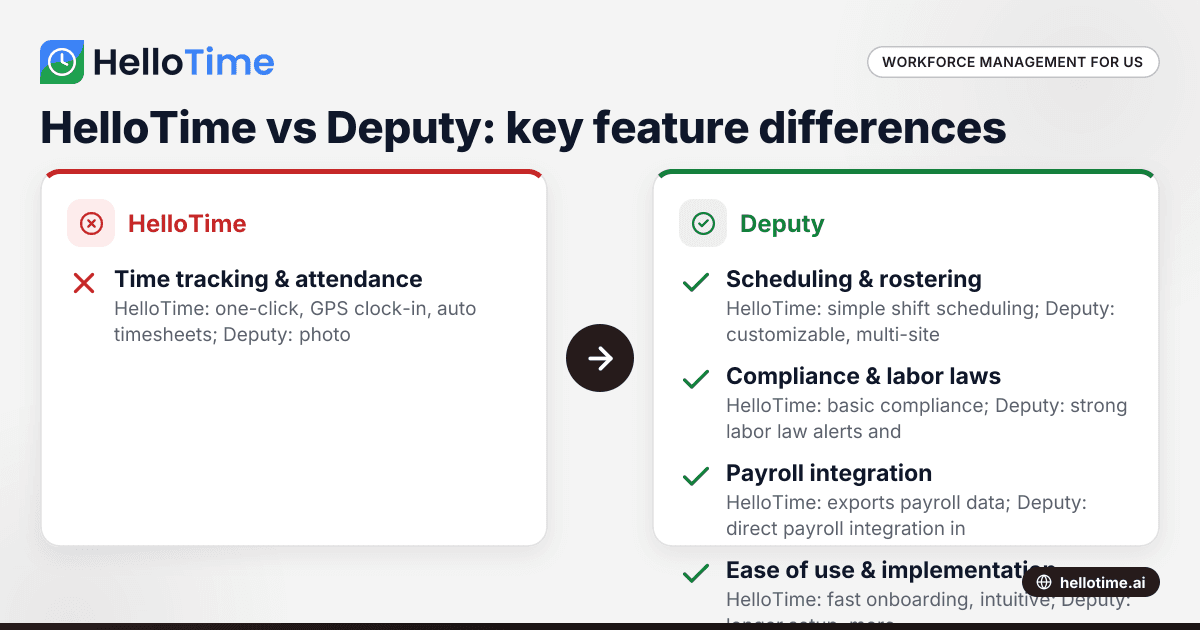
HelloTime vs Deputy: Which Workforce Management Software is Best for United States Small Businesses?
HelloTime and Deputy are popular workforce management tools offering employee scheduling, time tracking, and attendance solutions for US small.
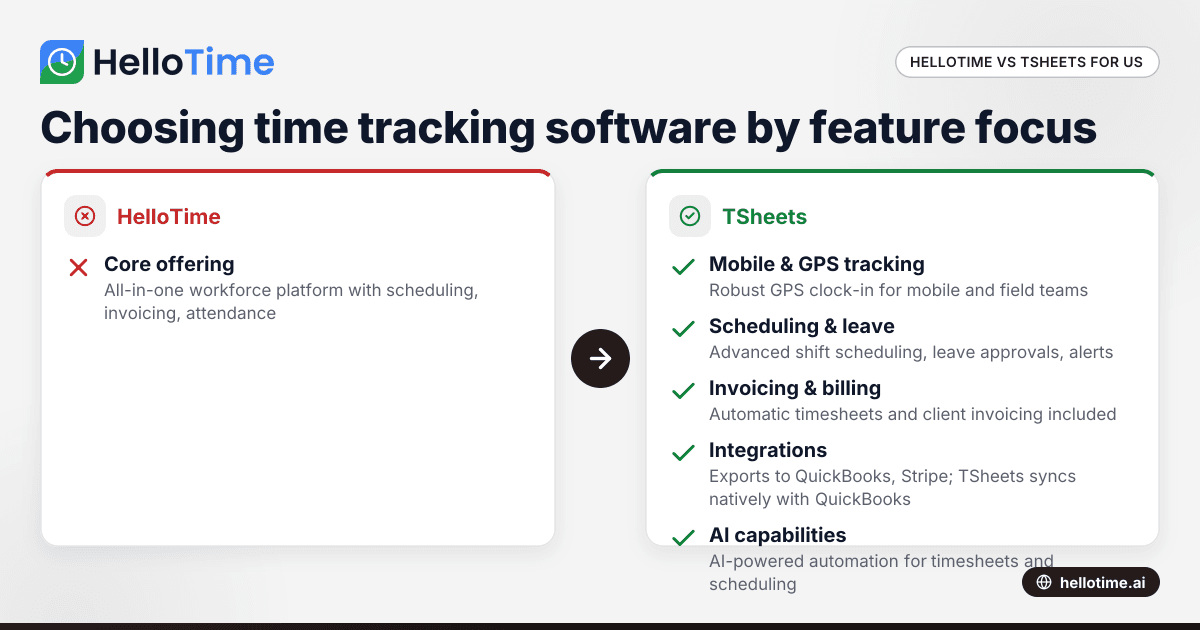
HelloTime vs TSheets: Choosing the Best Time Tracking Software for United States Agencies
HelloTime and TSheets are popular time tracking solutions for agencies and professional services in the United States. Comparing HelloTime vs TSheets.
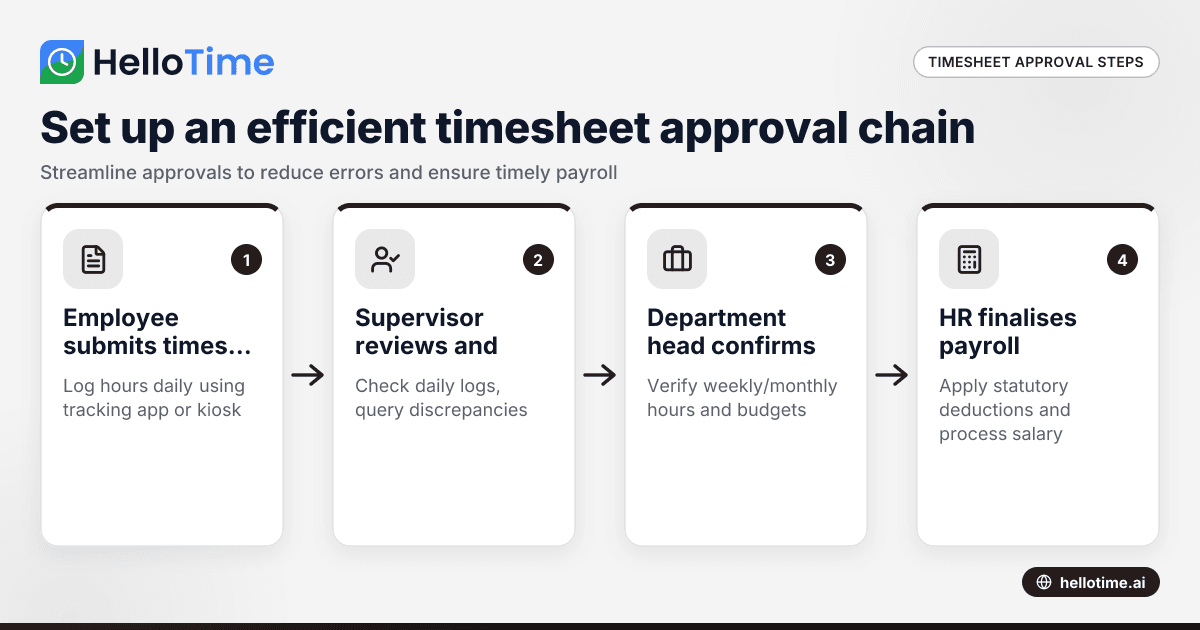
How to Set Up an Efficient Timesheet Approval Chain for Indian SMEs
How to Set Up an Efficient Timesheet Approval Chain for Indian SMEs This guide is for owners, HR, and operations managers at Indian small and.