How United States Small Businesses Can Optimize User Mode Settings to Streamline Timesheet Approval Workflows
In timesheet approval workflows, user mode customizes access and approval steps based on employee roles, allowing roles like employees, managers, and.
The HelloTime team
9 min read
On this page
In timesheet approval workflows, user mode customizes access and approval steps based on employee roles, allowing roles like employees, managers, and HR to perform specific actions. This setup improves accuracy, speeds approvals, and enforces compliance with labor laws such as the FLSA.
Key takeaways
- User mode in timesheet software customizes access and approval steps for different employee roles.
- Proper setup of user mode prevents bottlenecks and enforces compliance with US labor laws.
- AI user mode can automate routine approvals and flag anomalies, reducing manual oversight.
- Configuring workflows to match organizational hierarchy streamlines manager reviews and employee submissions.
- Timesheet software with integrated GPS and geofenced clock-in enhances attendance accuracy.
- Using cloud-based timesheet tools compatible with local payroll systems simplifies record-keeping and audits.
What is user mode in timesheet approval workflow?
User mode defines how timesheet software assigns permissions and views tailored to roles like employees, supervisors, and HR administrators. It controls who can submit hours, approve timesheets, edit records, or audit data. For example, employees submit their own hours, managers approve them, and HR can override or audit.
Such role-based customization helps US businesses across industries maintain accurate records required by the FLSA and state laws. It also reduces errors and prevents timesheet fraud such as buddy punching, crucial for companies in Chicago, Houston, or Detroit.
Why should my US small business optimize user mode settings?
Optimizing user mode avoids common pitfalls that lead to payroll errors and delays:
Streamlines approvals: Setting up clear responsibilities means managers don’t get overwhelmed or miss approvals. This matters for businesses with hourly workers or shifts, where delayed approvals can push back paychecks and affect morale.
Improves compliance: With precise permission settings, only authorized users edit timesheets, and audit trails are preserved. For instance, under the FLSA, employers must keep accurate records of employees' hours to comply with minimum wage and overtime regulations.
Reduces costly errors: Misreported hours or unauthorized edits can lead to incorrect pay or even legal exposure. Preventing these through user mode settings protects your business from expensive audits or lawsuits.
Speeds payroll cycles: Efficient workflows accelerate payment processing and invoicing. For example, a Chicago-based marketing agency billing clients hourly benefits when managers approve timesheets swiftly and invoicing auto-populates from those approved hours.
Worked example: Avoiding approval bottlenecks
A retail store in Detroit experienced delays because shift leads were the only approvers. When a shift lead was on leave, timesheets piled up, delaying payroll. By adding a secondary manager approver through user mode settings, approvals continued smoothly. Notifications were also set to escalate overdue approvals automatically after 48 hours. This cut approval times in half and ensured on-time payroll.
How does AI user mode enhance timesheet approval workflows?
AI user mode adds automation and intelligence to timesheet approvals, helping small businesses by approving routine timesheets automatically, flagging anomalies such as excessive overtime, and predicting bottlenecks. This reduces manual oversight and keeps compliance on track.
AI supports supervisors by managing straightforward cases and highlighting exceptions needing human review, improving efficiency without sacrificing accuracy or control.
Practical tip: Using AI alerts to reduce payroll errors
A small Houston construction firm integrated AI user mode to flag overtime above 40 hours per week. This helped supervisors catch inadvertent violations of Texas labor laws early, preventing potential FLSA penalties. AI also highlighted missing clock-outs during night shifts, reducing pay disputes.
How do I set up a user mode timesheet approval workflow in my small business?
Setting up an effective user mode workflow involves careful planning and configuration. Follow these detailed steps:
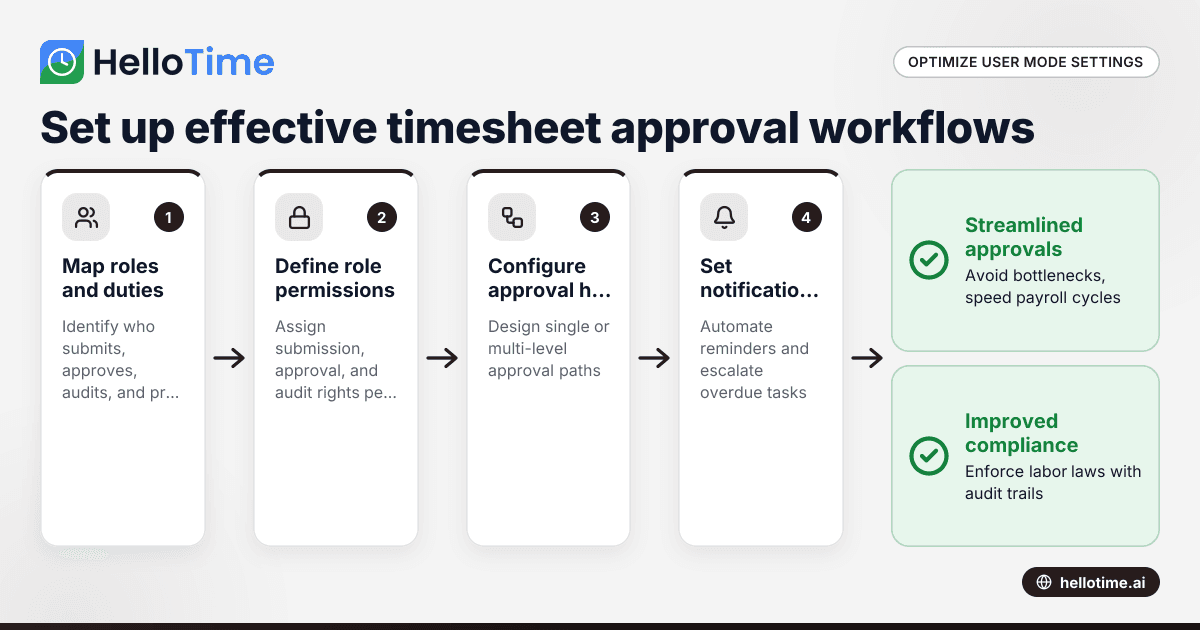
Step 1: Map organizational roles and timesheet duties
Make a list of who:
- Submits time (usually employees or contractors)
- Reviews and approves (supervisors, team leads, managers)
- Manages exceptions or audits (HR or payroll staff)
- Oversees final payroll processing
Example: In a New York hospitality business, front desk staff submit hours; shift supervisors approve daily; HR reviews weekly for compliance.
Step 2: Define permissions for each role
Use your timesheet software's settings to assign role permissions precisely:
- Employees: Submit and edit personal timesheets until approval deadline.
- Supervisors: Approve, reject, and request edits; view team timesheets.
- HR Admins: Access all data, generate reports, override entries.
- Payroll: Final processing rights (often separate or integrated system).
Prevent employees from editing after approval to maintain accuracy and audit trails.
Step 3: Set up approval hierarchies
Depending on business size and complexity, create single or multi-level approval:
- Single level: Supervisor approves directly before payroll.
- Multi-level: Team lead → department manager → HR approval.
For example, a professional services agency in Chicago requires project managers to approve before billing supervisors sign off to ensure budget control.
Step 4: Configure notifications and escalations
Set automatic reminders and escalation alerts:
- Notify managers when timesheets are ready.
- Remind if pending approval after X days.
- Escalate overdue approvals to higher management.
This prevents delays and keeps payroll on track.
Step 5: Incorporate compliance checks
Include rules such as:
- Overtime limits per FLSA (40 hours/week baseline).
- Matching breaks and meal periods per state laws.
- Leave approvals reflected in timesheets.
Use validation rules integrated into user mode to flag or block non-compliant entries.
Step 6: Test with pilot users
Run a test with a small group, such as field technicians in Detroit, to gather feedback. Look for issues like confusing steps, missing notifications, or overlooked permissions.
Step 7: Train employees and managers
Conduct training sessions explaining:
- How to submit timesheets correctly.
- Manager review and approval responsibilities.
- Use of any mobile apps, GPS features, or notifications.
Clear guidance reduces errors and speeds adoption.
What common user mode settings do small US businesses overlook?
Some small businesses miss critical setups that impact payroll accuracy:
Restricting edits post-approval: If employees can edit after approval, payroll errors and audit issues arise. Lock timesheets once approved.
Geofence clock-in enforcement: Disabling geofencing lets employees clock in from unauthorized locations. For example, construction crews in Houston should clock in only onsite. Enabling geofencing prevents fraudulent clock-ins.
Leave and holiday overrides: Timesheets should reflect approved leave or paid holidays to avoid conflicting records. Integrate leave management with user mode.
Approval delegation: When managers are absent, delegate approval rights to prevent bottlenecks in small teams.
How does user mode integration with payroll and invoicing help?
User mode establishes a secure foundation for seamless data flow into payroll and invoicing:
- Approved timesheets sync automatically with payroll systems, reducing errors and manual entry.
- US agencies in cities like Chicago benefit as timesheet approvals feed invoice generation, speeding client billing.
- Accurate time tracking improves tax compliance and audit readiness.
- Integration with popular finance tools such as QuickBooks or Stripe simplifies month-end processes.
Example: Accelerating cash flow in a marketing agency
A Chicago marketing firm configured user mode so project leads approve timesheets promptly. Approved hours automatically populated invoices sent via Stripe, cutting billing cycles from 30 to 14 days and improving cash flow.
How do GPS and geofenced clock-in features support timesheet accuracy?
GPS and geofencing ensure employees clock in/out only from authorized locations, preventing buddy punching and time theft. These verified location records support compliance and auditing needs. Real-time attendance monitoring helps manage shift-based teams in retail or field services.
Tips for setting up geofencing in user mode
- Define geographic boundaries around job sites or offices.
- Require GPS confirmation before clock-in.
- Set alerts for out-of-bounds clock-ins.
- Communicate policies clearly to respect employee privacy.
What compliance considerations affect user mode timesheet approval workflows?
US small businesses must respect key legal requirements:
- Fair Labor Standards Act (FLSA): Mandates accurate tracking of hours worked and overtime pay.
- State laws: States like California enforce stricter meal, break, and overtime rules.
- Record retention: Payroll and timesheet records must be kept at least three years per Department of Labor guidance.
User mode settings should include built-in validation and audit trails to support compliance. This article provides general information, not legal advice—always consult your legal counsel.
How can HelloTime help US small businesses with user mode timesheet workflows?
HelloTime offers customizable user mode settings tailored for small and mid-sized US businesses. Whether managing field-based teams, hourly-billing agencies, or retail shifts, HelloTime helps you:
- Set role-based permissions aligned with your organizational structure.
- Automate routine approvals using AI user mode with intelligent alerts.
- Use GPS and geofence clock-in to verify attendance locations.
- Auto-build timesheets and streamline approval cycles.
- Configure notifications and escalations to prevent payroll delays.
These features reduce errors, save administrative time, and support compliance across industries from Chicago to Houston.
Explore HelloTime’s workforce management features or compare plans to find the best fit for your business at pricing.
Frequently asked questions
What is the difference between user mode and admin mode in timesheet software?
User mode is intended for employees and managers submitting and approving timesheets with limited permissions. Admin mode is for HR or IT personnel with broader access to configure workflows, set policies, audit data, and maintain system settings.
Can AI user mode replace human approval in timesheet workflows?
AI user mode automates routine approvals and flags irregularities but does not fully replace human judgment. Managers still review exceptions and disputed timesheets to ensure fairness and accuracy.
How do I ensure data security when setting user mode permissions?
Assign roles strictly by job function to enforce least privilege. Use strong passwords and multi-factor authentication. Choose cloud tools like HelloTime that follow best practices in data protection.
Are geofenced clock-ins compliant with US labor laws?
Yes, geofenced clock-ins are compliant when employees are notified and privacy laws are respected. They enhance attendance accuracy and fraud prevention. Check your state’s privacy regulations before implementation.
How can I manage timesheet approvals for remote or hybrid teams?
Use mobile-friendly apps with GPS verification and flexible approval workflows. Train employees on submission deadlines and use notifications to keep approvals on track for remote workers.
How often should I review and update user mode settings?
Review settings annually or after organizational changes, software updates, or new labor regulations. Regular audits ensure workflows stay efficient, compliant, and aligned with your business needs.
Read next
This article covers one part of a bigger topic. For the complete picture, read our guide to user mo.
Keep reading
Related articles
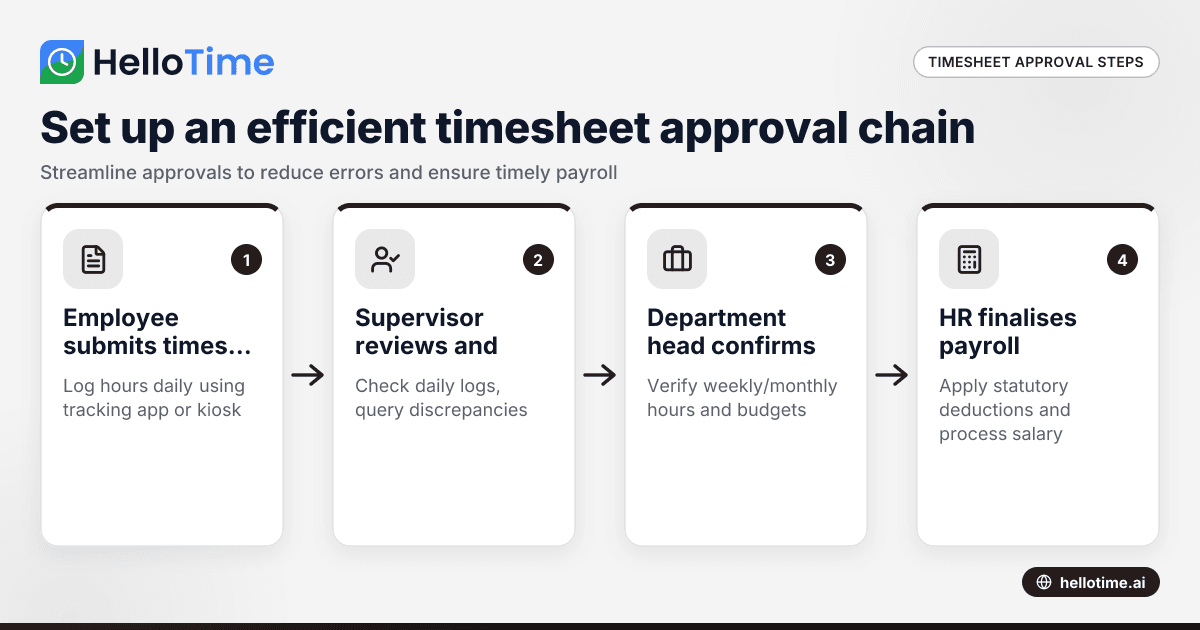
How to Set Up an Efficient Timesheet Approval Chain for Indian SMEs
How to Set Up an Efficient Timesheet Approval Chain for Indian SMEs This guide is for owners, HR, and operations managers at Indian small and.
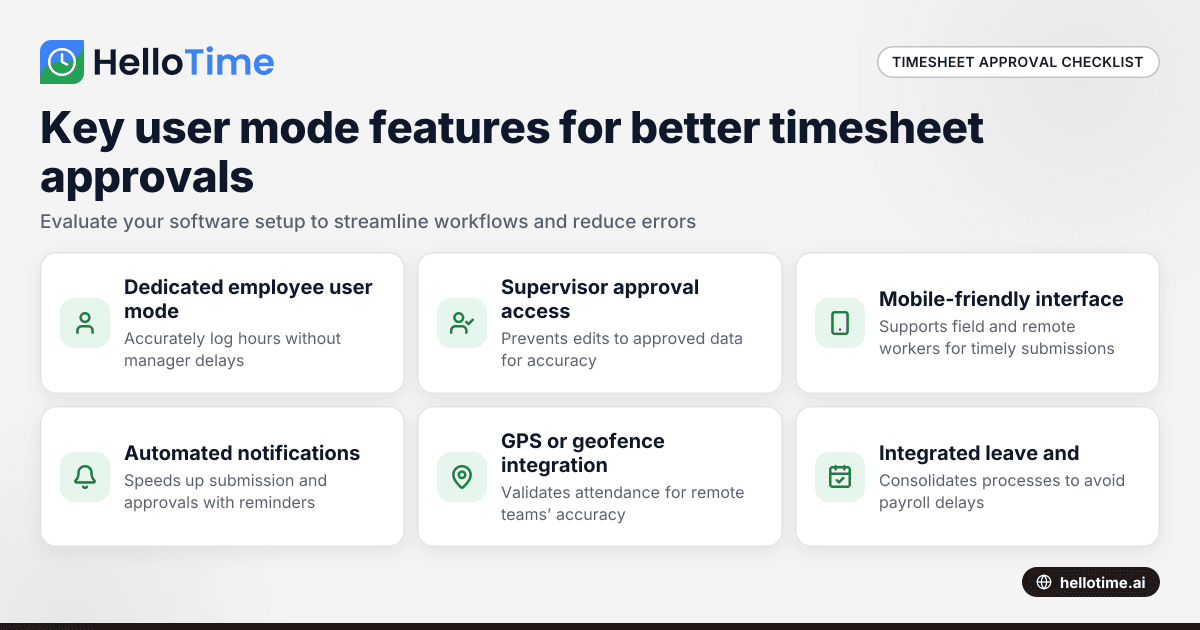
How User Mode Enhances Timesheet Approval Workflow for Indian Small Businesses
How User Mode Enhances Timesheet Approval Workflow for Indian Small Businesses.
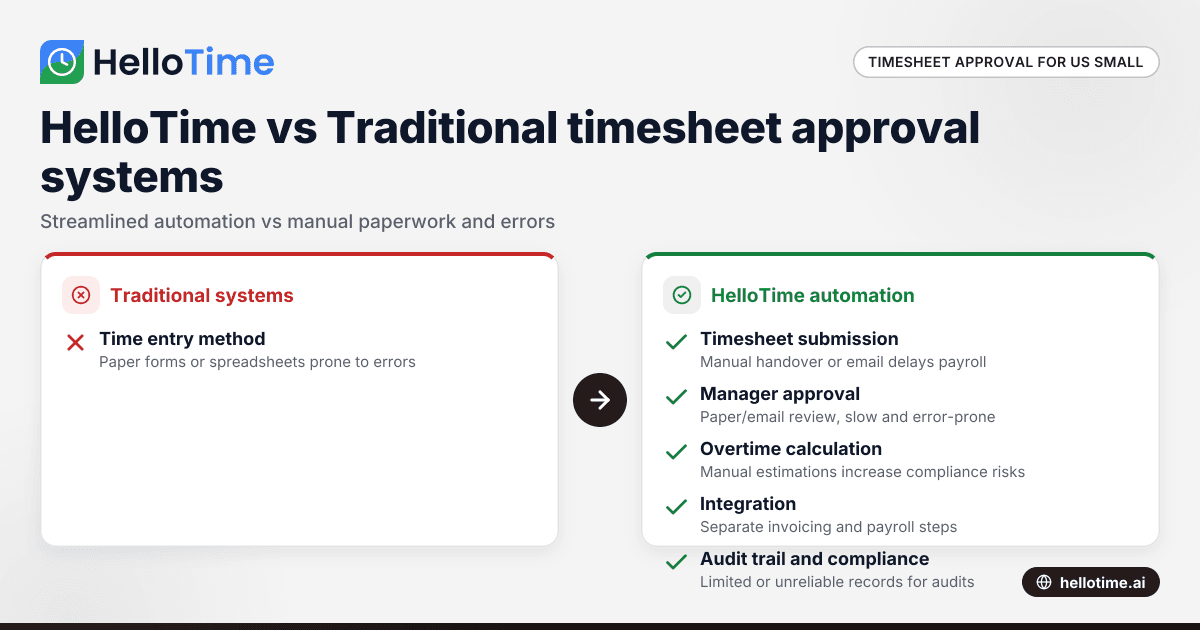
HelloTime vs Traditional Timesheet Approval Systems: Advantages for United States Small Businesses
HelloTime vs Traditional Timesheet Approval Systems: Advantages for United States Small Businesses When comparing HelloTime vs traditional timesheet.