User Management in Timesheet Software in the United States: How Small Businesses Can Set Access by Employee, Manager, and Client-Billable Team
User management in timesheet software means deciding who can see, enter, edit, approve, and export time. For small businesses in the United States, a.
The HelloTime team
12 min read
On this page
User management in timesheet software means deciding who can see, enter, edit, approve, and export time. For small businesses in the United States, a good setup keeps payroll and billing accurate, limits mistakes, and gives each employee, manager, and client-facing team only the access they need.
Key takeaways
- User management controls who can track time, approve timesheets, view reports, and manage schedules.
- Small businesses should set roles by job responsibility, not by convenience or seniority alone.
- Employees, managers, and client-billable teams usually need different permissions.
- Clear approval rules reduce payroll disputes, billing write-offs, and accidental data changes.
- Audit trails, manager approvals, and limited export access help protect sensitive labor and billing data.
- A simple role structure is easier to maintain than dozens of custom permission exceptions.
Why user management matters in timesheet software in the United States
For many small businesses, timesheets affect more than attendance. They drive payroll, invoicing, project profitability, and labor planning. When access is too broad, the risk goes up fast.
An employee may edit past entries without approval. A supervisor may approve the wrong team’s hours. A client service lead may see payroll details they do not need. An office manager may export billing data that should stay with finance.
That is why user management timesheet software united states searches are really about control. Business owners want a system that reflects how work actually happens. A Chicago marketing agency needs one setup. A Houston field service company needs another. A Detroit manufacturer with shift leads needs another.
In each case, the core question is the same. Who should be allowed to do what?
Good user management helps you answer that question in a practical way. It can:
- reduce manual corrections
- improve manager accountability
- protect labor and billing data
- speed up approvals
- support cleaner records for audits and disputes
This article gives a simple framework for setting access by employee, manager, and client-billable team in the United States. It is general information, not legal or tax advice.
What should each user role actually be allowed to do?
Each role should get the minimum access needed to do its job well. Employees need to track and submit time. Managers need to review and approve their teams. Billing or client-facing teams may need project hours and billable reports, but not every payroll detail.
Start with the principle of least access
The best permission model is usually the simplest one. Give users the least access required to complete their work. Add more access only when a real business need exists.
This approach helps small businesses avoid common problems:
- employees changing approved hours
- managers viewing unrelated departments
- project leads seeing wage or leave details
- finance teams cleaning up avoidable errors
Least access is especially useful when your business is growing. A 10-person team may handle permissions informally. A 40-person team usually cannot.
The three core role groups most small businesses need
Most small businesses can begin with three main groups.
1. Employees
Employees usually need access to:
- clock in and clock out
- enter time against jobs, projects, or cost codes
- view their own timesheets
- submit timesheets for approval
- view their own schedule or assigned shifts
- request leave, if leave tracking is included
Employees usually should not be able to:
- approve their own timesheets
- edit approved entries without reopening the period
- view team-wide pay or billing reports
- export company-wide data
- change project billing rules
This is true whether the employee is hourly, salaried, remote, field-based, or shift-based.
2. Managers and supervisors
Managers need broader visibility, but only for their direct scope. That often includes:
- reviewing employee hours
- approving or rejecting timesheets
- correcting missed punches, with an audit trail
- viewing attendance exceptions
- seeing overtime trends
- viewing team schedules and leave calendars
- running reports for their department or location
Managers usually should not be able to:
- view all company financial data
- edit company-wide settings
- access unrelated departments
- change billing rates unless they own that function
A restaurant manager in Houston may need access to one location’s roster and attendance. That same manager usually does not need access to every location in the company.
3. Client-billable teams
This group often appears in agencies, consultancies, IT services firms, and other project-based businesses. These users may include account managers, project managers, operations leads, or finance staff who work on invoicing.
They often need access to:
- billable and non-billable time by project
- project budgets and tracked hours
- client-facing summaries
- approval status for billable time
- invoicing inputs from approved billable hours
They may not need access to:
- employee wage details
- full leave records
- unrelated project data
- attendance settings for shift teams
This separation matters. Client billing teams need clean project data. They do not always need full HR or payroll visibility.
How do you set access without making it too complicated?
Use a small number of standard roles, then limit access by team, location, project, or manager relationship. Avoid one-off exceptions unless they solve a real recurring need.
Build roles around work, not people
Many businesses make the same early mistake. They assign access around specific individuals instead of job functions.
That causes trouble when staff move, managers change, or temporary coverage is needed. Instead, define roles such as:
- Employee
- Team Lead
- Department Manager
- Project Manager
- Finance or Billing Admin
- System Admin
Then decide what each role can do.
Next, limit where each role applies. For example:
- Team Lead: can review only assigned crew members
- Department Manager: can approve one department across one site
- Project Manager: can see project time but not payroll data
- Billing Admin: can export approved billable time, not attendance settings
This makes administration easier. It also makes onboarding faster.
Use approval paths that match your reporting structure
Permissions and approvals should work together. If they do not, you will create bottlenecks.
A practical approval setup may look like this:
- Employee submits weekly time.
- Direct manager reviews exceptions.
- Department head approves if needed.
- Finance exports approved billable data or payroll hours.
This structure works well because each user sees only the information needed for the next step.
When possible, assign approvers by reporting line or team ownership. Avoid shared inbox-style approvals where no one is clearly accountable.
Keep location and department filters tight
Many small businesses operate across multiple sites, teams, or service lines. A broad manager role can expose too much data unless it is limited.
Use scope controls like:
- location
- department
- project
- cost center
- client account
- manager relationship
For example, a field supervisor in Chicago may need to approve technicians assigned to one service region. That same supervisor should not automatically see office staff hours or another region’s projects.
Which permissions matter most for employees, managers, and billable teams?
The most important permissions are time entry, edit rights, approvals, reporting access, and export rights. If you control those well, you prevent most timesheet mistakes and data exposure issues.
Employee permissions to review first
For employees, focus on these settings first:
Time entry method
Can they clock in live, fill a manual timesheet, or do both? Your answer should match the job. Field workers may need mobile clock-in. Office staff may enter project time blocks.
Edit window
Can they edit only the current day, the current pay period, or past periods? A limited edit window prevents historical changes without review.
Project or job selection
Can they book time to any project, or only assigned projects? Assigned-project access keeps billing cleaner.
Visibility
Can they see only their own time, leave, and schedule? In most cases, yes.
Manager permissions to review first
For managers, check these carefully:
Approval rights
Can they approve time only for direct reports or for a whole department? The smaller the scope, the better.
Exception handling
Can they fix missed punches, break errors, or wrong job codes? If yes, the system should keep a clear audit trail.
Reporting visibility
Can they see hours, attendance, overtime, and leave for their team? They often need that. They usually do not need wage rates unless their role truly requires them.
Schedule control
Can they create, edit, or publish shifts? In shift-based environments, schedule permissions often need their own controls.
Client-billable team permissions to review first
For billable teams, focus on:
Billable status visibility
They need to know which hours are billable, approved, and invoice-ready.
Project budget access
Project leads often need budget-versus-actual hours to avoid overruns.
Export access
Decide who can export approved time for invoicing or transfer data into QuickBooks or Stripe workflows. Keep this access limited.
Rate visibility
Some project leads need to see billing rates. Many do not need employee pay rates. Separate those two ideas.
What are the biggest user management mistakes small businesses make?
The biggest mistakes are over-permissioning, shared logins, unclear approvers, and no audit trail. These problems create billing errors, payroll disputes, and extra admin work.
Giving managers company-wide access
This happens often in fast-growing teams. A manager is trusted, so they get broad system access. Later, the company realizes that person can see unrelated labor records or edit data outside their department.
Trust matters. Scope still matters more.
Letting approved time stay editable
If approved time can still be changed freely, reports become unreliable. Payroll and invoice inputs no longer match what was reviewed. Lock approved periods, or require a formal reopen process.
Mixing billing access with HR access
Client service and billing teams often need project hours. That does not mean they need leave records, attendance corrections, or employee pay information.
Split project visibility from HR visibility wherever possible.
Using shared accounts on kiosks or in the field
Shared logins reduce accountability. If multiple workers use one generic account, you lose clear records of who entered or changed time. If you use a kiosk, use individual identification controls.
Forgetting admin succession
Many small businesses have one person who understands the system. That works until they leave, take vacation, or change roles. Keep admin roles documented and assign backup owners.
Can ai user management help with timesheet permissions?
Yes, ai user management can help by suggesting role patterns, flagging unusual access, and reducing manual setup. It should support human decisions, not replace them.
Small businesses do not need complicated automation to benefit from smarter user setup. Even basic AI-assisted workflows can help administrators spot issues faster.
For example, an AI-supported system might:
- suggest default roles based on department or job title
- flag when a user has both approval and broad export rights
- identify managers who can view teams they do not supervise
- detect unusual edits to approved timesheets
- recommend tighter access after org changes
This is useful because permissions tend to drift over time. A temporary exception becomes permanent. A former manager keeps old access. A project lead inherits settings from another department.
That is where ai user management becomes practical. It can help you review access regularly instead of only after a mistake happens.
Still, keep the process grounded. Any permission recommendation should be reviewed by someone who understands your operations. AI can point to risk. Your business should decide the final rule.
A simple setup for a small business in the United States
If you are moving from paper or spreadsheets, do not start with a complex permission map. Start with a clear baseline.
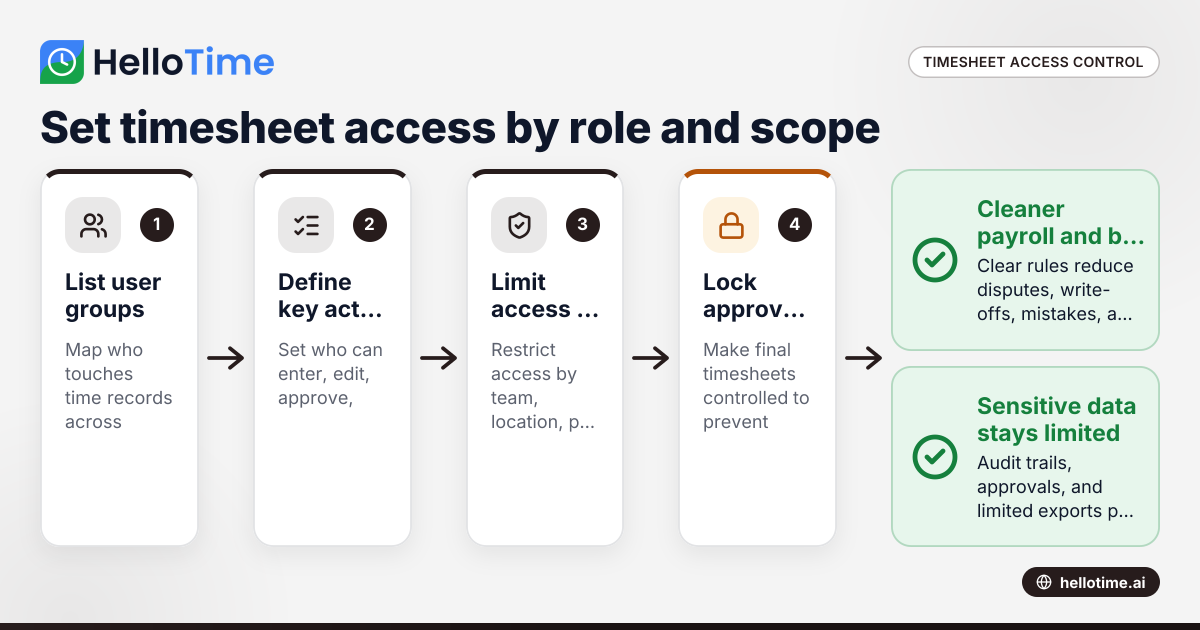
Step 1: List your user groups
Write down every type of user who touches time records, such as:
- employees
- shift leads
- department managers
- project managers
- HR or operations admins
- finance or billing staff
- owners or executives
Step 2: Define the five actions that matter most
For each group, decide whether they can:
- enter time
- edit time
- approve time
- run reports
- export data
This gives you a simple first version.
Step 3: Set scope limits
For every approval and reporting role, decide the scope:
- direct reports only
- one location
- one department
- selected projects
- all company data
Keep “all company data” rare.
Step 4: Lock approvals and changes
Decide when a timesheet becomes final. Then define who can reopen it and why. This protects payroll and billing accuracy.
Step 5: Review access every quarter
A quarterly review is often enough for a small business. Check for:
- former managers with live approvals
- admins with too much access
- billing users with HR visibility
- employees assigned to old projects
- exports available to too many users
How should small businesses review timesheet access over time?
Review access on a set schedule and after every staffing or reporting change. Most problems come from outdated permissions, not the original setup.
Use trigger events, not just annual audits
A yearly review is better than nothing. It is usually not enough.
Review permissions when:
- a manager changes teams
- a new location opens
- a department restructures
- a billing process changes
- an employee leaves
- a client-facing team takes over new accounts
These events often create permission gaps.
Document your role rules in plain English
You do not need a long policy manual. A one-page access guide can work well. It should state:
- each role name
- what the role can do
- what data it can see
- who approves access changes
- how often access is reviewed
This helps when you hire, promote, or backfill managers.
Choose software that supports clean role separation
When evaluating a tool, ask practical questions:
- Can employees be limited to their own data?
- Can managers approve only their teams?
- Can project leads see billable hours without HR records?
- Can approved timesheets be locked?
- Is there an audit trail for edits and approvals?
- Can access be limited by location, project, or department?
If you are comparing options, review the available features and check HelloTime in the US for product fit in the United States.
How HelloTime fits this kind of setup
HelloTime is useful when your business needs one place for time tracking, approvals, schedules, attendance, leave, and billable-hour workflows. The key advantage for user management is that these tasks can be organized around role-based access instead of scattered spreadsheets.
For example, a service business can let employees clock in and submit time, give supervisors approval rights for assigned teams, and allow billing users to work from approved billable hours. A shift-based business can keep attendance and scheduling visible to managers without opening unrelated records to everyone.
That matters because user management is not just an IT setting. It affects daily operations. If your timesheet system also touches approvals, leave, billing, and labor planning, access rules need to stay clear.
The goal is simple. Every user gets enough access to do their job. No one gets more than they need.
Read next
This article covers one part of a bigger topic. For the complete picture, read our guide to user mo.
Keep reading
Related articles
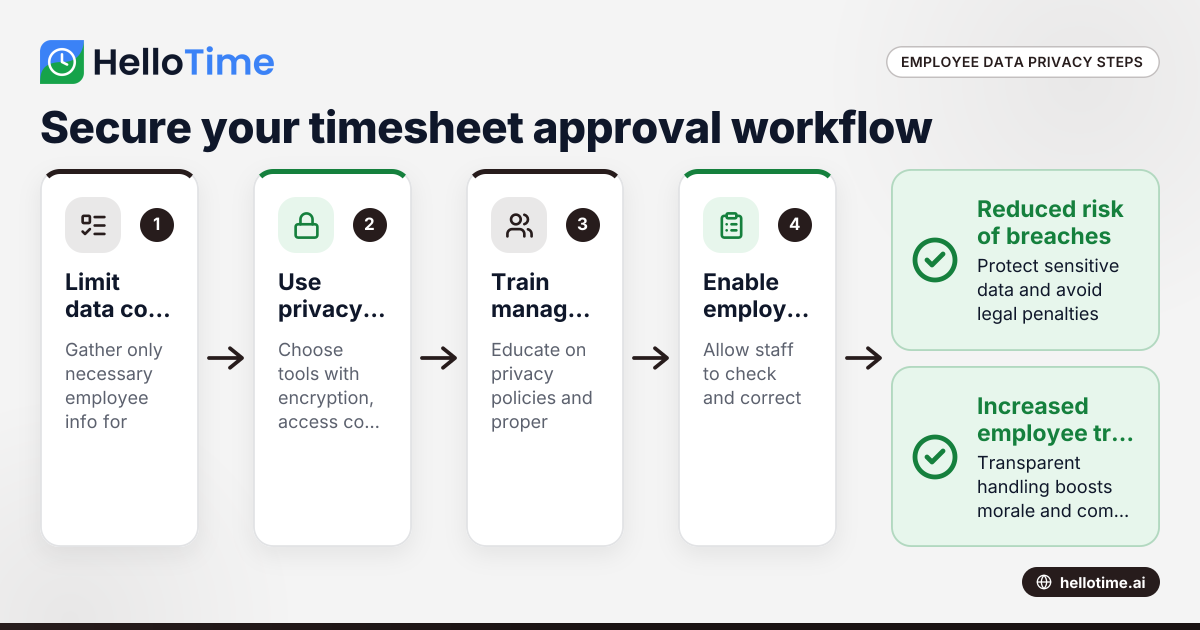
Navigating Employee Data Privacy Under United States Laws in Timesheet Approval Workflows
Navigating employee data privacy in timesheet approval workflows requires careful attention to US laws, as well as awareness of international.
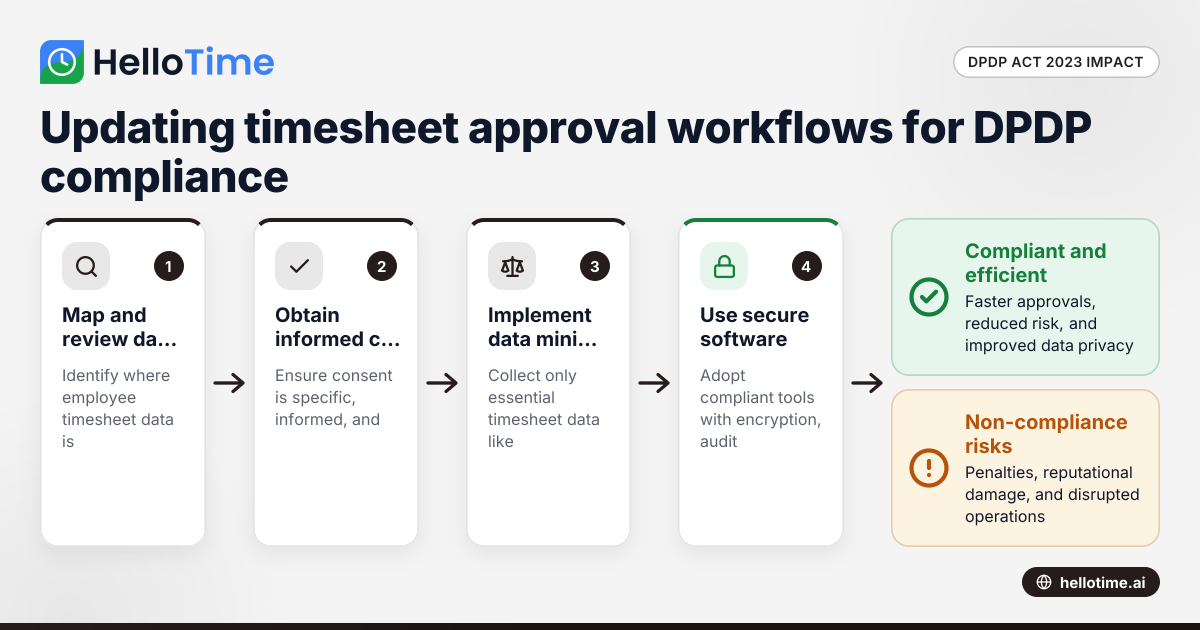
How the DPDP Act 2023 Affects Timesheet Approval Workflow for Manufacturers in Maharashtra, India
How the DPDP Act 2023 Affects Timesheet Approval Workflow for Manufacturers in Maharashtra, India The Digital Personal Data Protection (DPDP) Act 2023
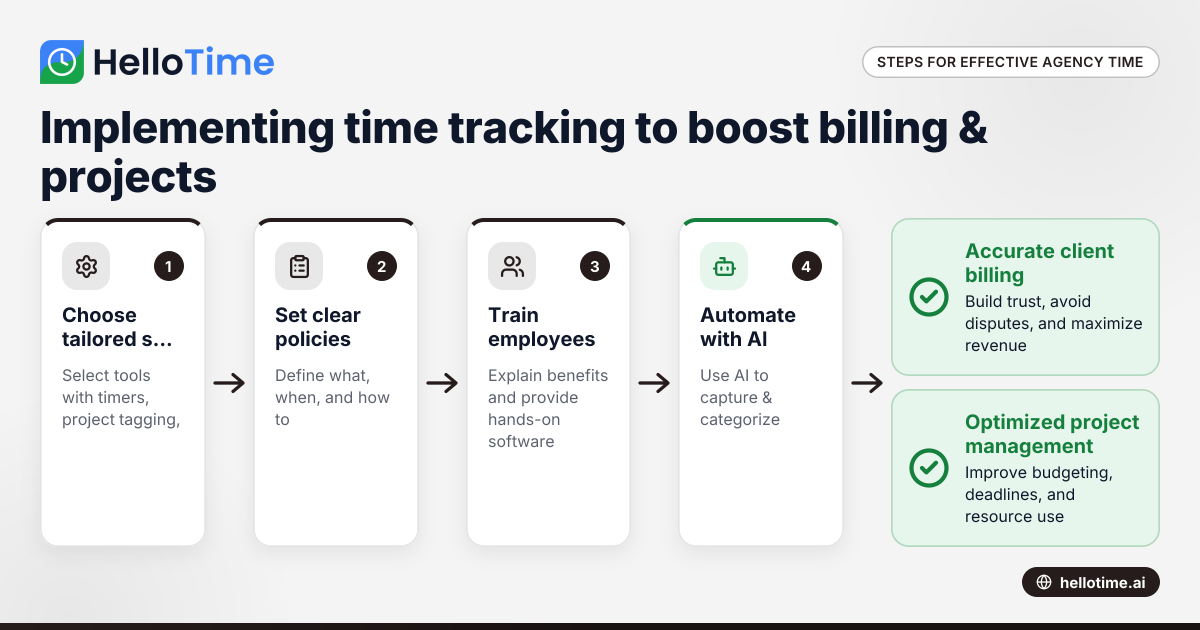
Effective Time Tracking Strategies for United States Agencies to Enhance Client Billing and Project Management
Effective time tracking is essential for agencies in the United States to improve client billing accuracy and optimize project management. With.