User Mode in Employee Attendance Kiosk Software in United States: How Small Businesses Can Set Clock-In Access Without Slowing Down Shared Entrances
User mode in employee attendance kiosk software is the set of rules that decides who can clock in, how they identify themselves, and what actions they
The HelloTime team
12 min read
On this page
User mode in employee attendance kiosk software is the set of rules that decides who can clock in, how they identify themselves, and what actions they can take on a shared device. For small businesses in the United States, the goal is simple: let the right people clock in fast, block the wrong actions, and keep the entrance moving during busy shift changes.
Key takeaways
- User mode controls access on a shared attendance kiosk, including who can clock in and which actions appear.
- The best setup reduces lines at entrances, especially for retail, hospitality, manufacturing, and field teams.
- Small businesses should separate employee actions from manager actions on the kiosk.
- Face recognition, PINs, geofencing, and tablet kiosk rules can work together to improve speed and accuracy.
- A good kiosk setup should balance convenience, security, and clear attendance records for payroll and approvals.
- This article is general information, not legal advice. If you collect biometric data, check the rules that apply in your state.
What is user mode attendance kiosk software in United States?
In the United States, user mode attendance kiosk software means a shared clock-in system that shows different permissions or workflows based on the person using it. In practice, that usually means employees can clock in and out, while supervisors may also review exceptions, approve changes, or unlock a missed punch flow.
This matters because many small businesses use one tablet at a front desk, warehouse door, break room, or jobsite trailer. If every worker sees the same options, the screen gets cluttered, mistakes increase, and lines grow longer during shift changes.
For a Chicago restaurant, the lunch shift may start with cooks, servers, and delivery staff arriving in a short window. For a Houston field service company, crews may gather at a dispatch point before driving out. For a Detroit shop floor, the busiest time may be right before first shift. In each case, the shared entrance works better when the kiosk is locked to the few actions workers actually need.
Why user mode matters more on shared devices
On a personal phone, employees can often navigate a full menu because they are using their own account. On a shared kiosk, speed is everything. The device should behave more like a secure punch station than a general app.
That is where user mode becomes practical. It helps you:
- Reduce tap count at clock-in.
- Hide admin settings from hourly staff.
- Prevent accidental edits.
- Lower buddy punching risk.
- Keep attendance records cleaner for later review.
For many small businesses, the real win is not only security. It is smoother traffic flow at the door.
How does user mode help shared entrances move faster?
User mode speeds up a shared entrance by limiting each employee to the few actions they need, such as clock in, clock out, or start break. Fewer choices mean fewer mistakes and shorter lines. It also keeps manager tools off the main screen, so the kiosk stays simple during busy shift changes.
The first problem at a shared entrance is not usually software performance. It is decision time. If workers must stop and think, search for their name, or navigate extra menus, the line backs up quickly.
A clean user mode setup solves that by removing friction from the common path. Most teams do not need ten kiosk actions. They need three or four. When the screen is designed around those actions, people move through faster.
Common bottlenecks at clock-in
Small businesses often see the same issues:
- Long name lists on one screen
- Extra prompts before punch confirmation
- Supervisors using the same kiosk menu as employees
- Workers trying to fix missed punches at the kiosk
- Visitors or former employees accessing the punch screen
- Poor placement of the device near a narrow doorway
User mode does not fix every physical bottleneck, but it improves the software side. The kiosk should guide each person to a fast, predictable flow.
A practical example
Imagine a 35-person manufacturing team in Detroit with a tablet near the break room entrance. If each worker needs 15 seconds to find their name, enter a PIN, and confirm a shift code, the line builds fast. If that same device uses face recognition or a short ID flow and only shows the next valid action, each punch takes much less time.
The difference is not only convenience. Faster punches reduce late-start disputes, missed punches, and supervisor interruptions.
Which kiosk actions should employees actually see?
Most employees should only see the actions needed for attendance: clock in, clock out, break start, and break end. Manager actions like edits, approvals, settings, or reports should stay hidden or require a separate login. A simpler screen reduces confusion and keeps the line moving.
The best user mode is not the one with the most options. It is the one with the fewest options needed to do the job.
Start with role-based access
Think in roles, not in people. A small business can usually define three clear groups:
Employees Basic attendance actions only.
Supervisors Limited exception handling, such as confirming a missed punch reason.
Admins or HR Full settings, reports, and policy management, but usually outside the shared kiosk.
This matters because every extra control on a public-facing tablet adds delay and risk.
Recommended default screen for most small businesses
For shift-based teams, the kiosk home screen should usually include:
- Clock in
- Clock out
- Start break
- End break
Optional items may include:
- Select location or job
- View schedule for today
- Missed punch request
Anything beyond that should be carefully justified. If workers need frequent changes to job codes or departments, keep that flow short and structured.
Keep exception handling away from the entrance
A shared entrance is the wrong place for long problem-solving. If someone forgot to punch yesterday, the kiosk should not turn into a timecard editing station. Instead, offer a simple “request correction” path or direct the worker to a manager after the rush ends.
That one change can dramatically reduce line buildup during opening shifts.
What is the best user mode setup for a small business?
The best setup gives employees one fast identification method, a minimal list of punch actions, and separate manager access. It should also match the way people arrive: one entrance, several entrances, or mobile jobsites. Good user mode is built around traffic flow, not just software features.
There is no one-size-fits-all setup. The right design depends on your business type, arrival pattern, and level of control needed.
Best-fit setups by business type
Retail stores
Retail teams often clock in at the back room or manager station. Use a simple employee mode with clear clock in and clock out buttons. If theft or buddy punching is a concern, use stronger identity checks. Keep manager overrides off the main kiosk screen.
Restaurants and hospitality
Restaurants have rush periods before service begins. Fast recognition matters more than deep menus. The kiosk should support quick punch actions and avoid extra prompts. Break handling should be easy because meal and rest tracking can affect records and disputes.
Manufacturing and warehouses
These teams often arrive in waves. Put the kiosk where workers naturally queue without blocking a safety path. If multiple departments share one device, user mode should keep job selection short and obvious. Long drop-down lists create backups.
Field service and construction
Crews may clock in from a tablet at dispatch or on a jobsite trailer. In these settings, location controls matter. GPS, geofencing, and a kiosk locked to one site can reduce confusion. If workers change sites during the day, use a clear transfer flow that does not slow the morning start.
How should you design user mode at a busy entrance?
Design user mode around the busiest five minutes of the day. Limit actions, shorten identity steps, and remove any task that is not essential to the punch. Place the kiosk where workers can queue safely and where a supervisor can help without taking over the screen.
Once you know your busiest moments, build backward from them.
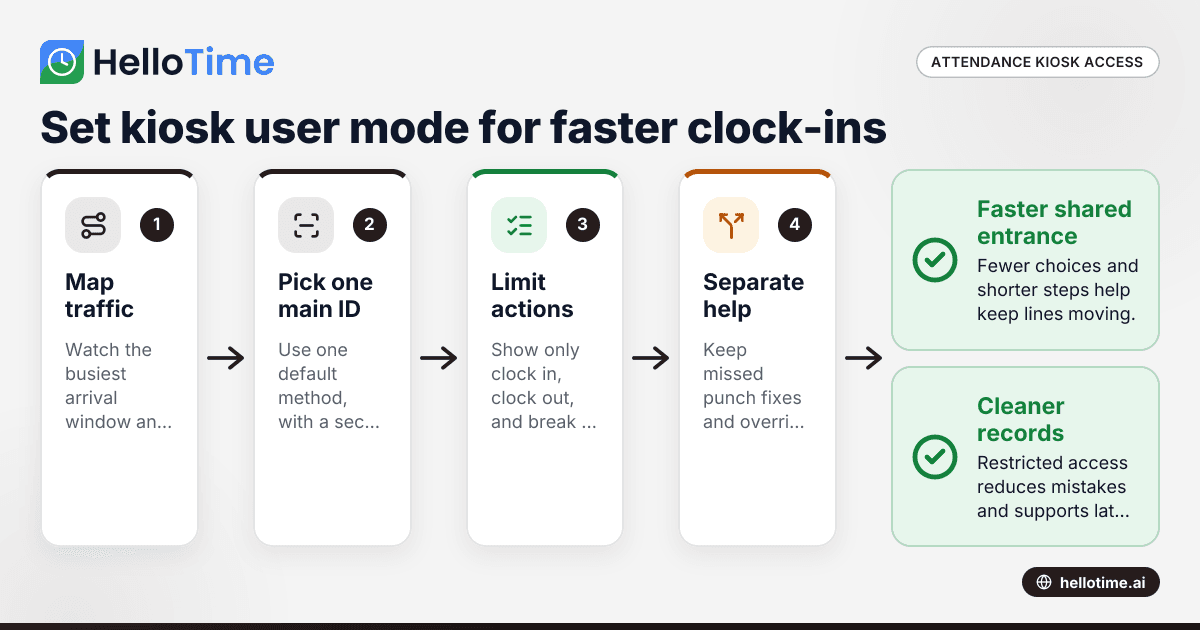
A five-step setup process
- Map the traffic
Count how many employees arrive within the same five- to ten-minute window. Watch where the line forms. Note whether people carry gloves, bags, tools, or food trays that affect how they use the screen.
- Pick one main identity method
Do not make workers choose between too many methods on the home screen. If face recognition is your main method, make that the default. If PIN is the fallback, keep it available but secondary.
- Limit the action list
Show only the next likely attendance actions. If most workers are arriving, prioritize clock in. During shift end, prioritize clock out. Some teams may also need break actions, but keep them visually separate.
- Separate help from the punch flow
Create a supervisor path for exceptions that does not interrupt the main line. A manager should be able to help a worker without opening full settings to everyone else.
- Test the first week and adjust
Watch real use at opening and closing. Count delays. Note repeated errors. Small changes to button order, screen wording, or kiosk placement often make a big difference.
Physical setup matters too
Even the best software struggles if the tablet sits in the wrong spot. Place the device where employees can stop briefly without blocking others. Avoid glare, poor lighting, and unstable Wi-Fi zones. If you use face recognition, make sure the camera angle and lighting support quick scans.
Where does ai user mode fit into attendance kiosks?
An ai user mode approach can make the kiosk smarter by predicting the most likely next action, surfacing the right screen faster, or improving identification flow. The goal is not complexity. It is fewer taps and less delay for the employee standing at the shared device.
In practical terms, AI should support speed, not add mystery. Small businesses do not need a kiosk that feels experimental. They need one that works predictably every day.
Useful AI-style behaviors in a kiosk
A smart kiosk flow may help by:
- Showing the most likely punch type based on time of day
- Reducing repeated prompts for routine shifts
- Helping match identity quickly through face recognition
- Flagging unusual attendance patterns for manager review later
- Keeping employee-facing screens simple while routing exceptions elsewhere
The key is restraint. A shared entrance is not the place for a complicated interface. If you use AI-assisted behavior, it should quietly reduce friction.
Keep the human rules clear
Even when a kiosk has smart features, your attendance policy still needs to be easy to understand. Employees should know:
- How they clock in
- What happens if the scan fails
- Who can fix a missed punch
- Whether location or photo checks apply
- What to do if the kiosk is offline
Clear rules prevent confusion and lower resistance to the system.
Security, privacy, and compliance points to check
Attendance kiosks handle sensitive workforce data. In the United States, that can include names, photos, location records, and in some setups biometric identifiers. Small businesses should think about privacy before rollout, not after complaints start.
If you use biometric or face-based identification
State rules can differ, and some states have specific biometric privacy requirements. If your kiosk uses face recognition, get advice on notice, consent, retention, and deletion practices where needed. Keep your policy in writing and train managers on it.
That is especially important if the kiosk is used across several states.
Lock down the shared device
A kiosk should not behave like an open tablet. Good practice includes:
- Locking the device to kiosk mode
- Restricting access to settings
- Requiring separate manager authentication for overrides
- Reviewing active employee lists regularly
- Removing former employees promptly
- Keeping attendance changes auditable
For many buyers, security expectations now include strong internal controls and a clear approach to workforce data handling. If customers ask about security during vendor review, they may also expect evidence of disciplined processes.
How do you choose the right software for user mode attendance kiosk software united states?
Choose software that lets you control employee actions on a shared device, supports fast identification, and separates admin tasks from daily punches. In the United States, also look for tools that fit your labor workflows, support clear records, and work well with scheduling, leave, approvals, and invoicing if you bill by time.
When comparing options, focus less on feature lists and more on real usage at the entrance.
Questions to ask before you buy
- Can I set different access levels for employees and managers?
- Can the kiosk be locked to one location or site?
- Does it support face recognition, PINs, or both?
- How are missed punches handled?
- Can the device run in a stable kiosk mode on a tablet?
- Are approvals and timesheets easy to review later?
- Does it support GPS or geofenced attendance if needed?
- Can we connect hours worked to billable time, schedules, or leave records?
Look beyond clock-in speed
Fast punches matter, but so does what happens afterward. Attendance data should feed into timesheets, approvals, scheduling, and reporting without extra spreadsheet work.
That is where a broader workforce platform can help. HelloTime includes tablet kiosk attendance with face recognition, GPS and geofenced clock-in, shift scheduling, leave management, and time tracking workflows that help small businesses move from paper or spreadsheet attendance to a cleaner process. If you want to see the wider product scope, explore the features page.
Common mistakes small businesses should avoid
Many attendance rollouts fail for simple reasons. The business buys software with the right features, but the kiosk flow is still too slow for the real-world entrance.
Mistake 1: Too many visible actions
If workers see scheduling, reports, edits, and settings on the same screen as clock in, the kiosk becomes confusing. Keep the employee view narrow.
Mistake 2: One setup for every location
A Chicago retail store, a Houston warehouse, and a Detroit service depot may need different kiosk rules. User mode should match traffic and risk at each site.
Mistake 3: No fallback when recognition fails
If the primary identity method fails, the line can stall. Always define a backup path, such as a PIN or supervisor-assisted punch.
Mistake 4: Ignoring entrance design
Software cannot fully fix a bad physical setup. If one tablet serves too many people in a tight space, you may need a second device or a better placement plan.
Read next
This article covers one part of a bigger topic. For the complete picture, read our guide to user mo.
Keep reading
Related articles
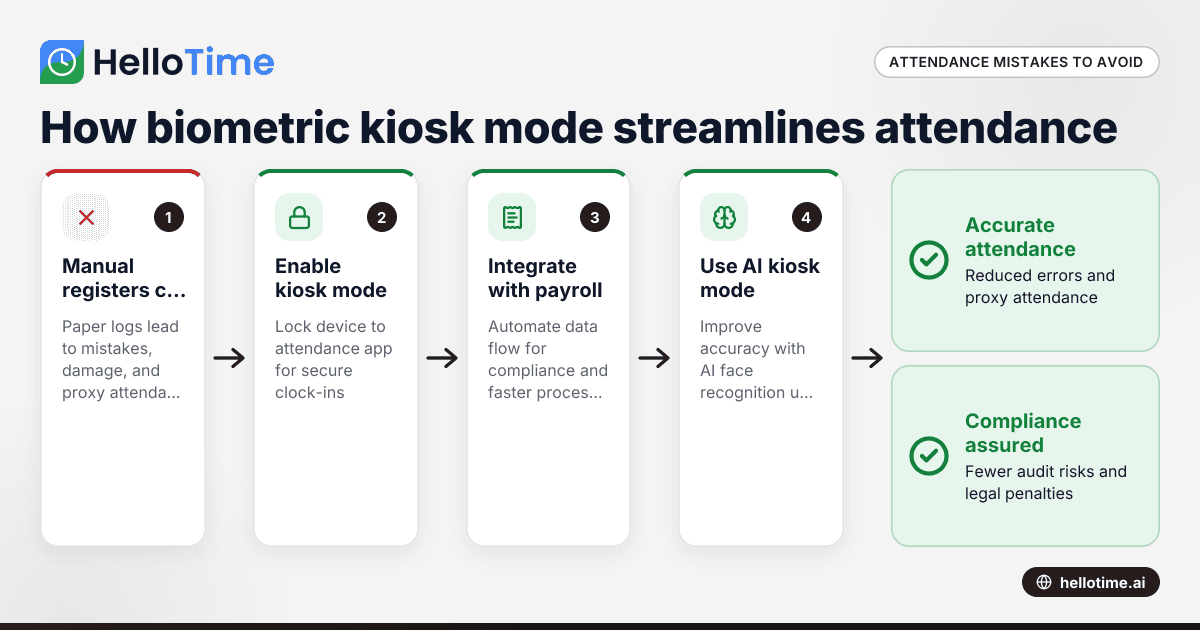
How Biometric Attendance Kiosk Mode Can Streamline Workforce Management for Indian Manufacturing Units
Manufacturing units in India often struggle with managing workforce attendance accurately and efficiently. Errors in attendance tracking lead to.
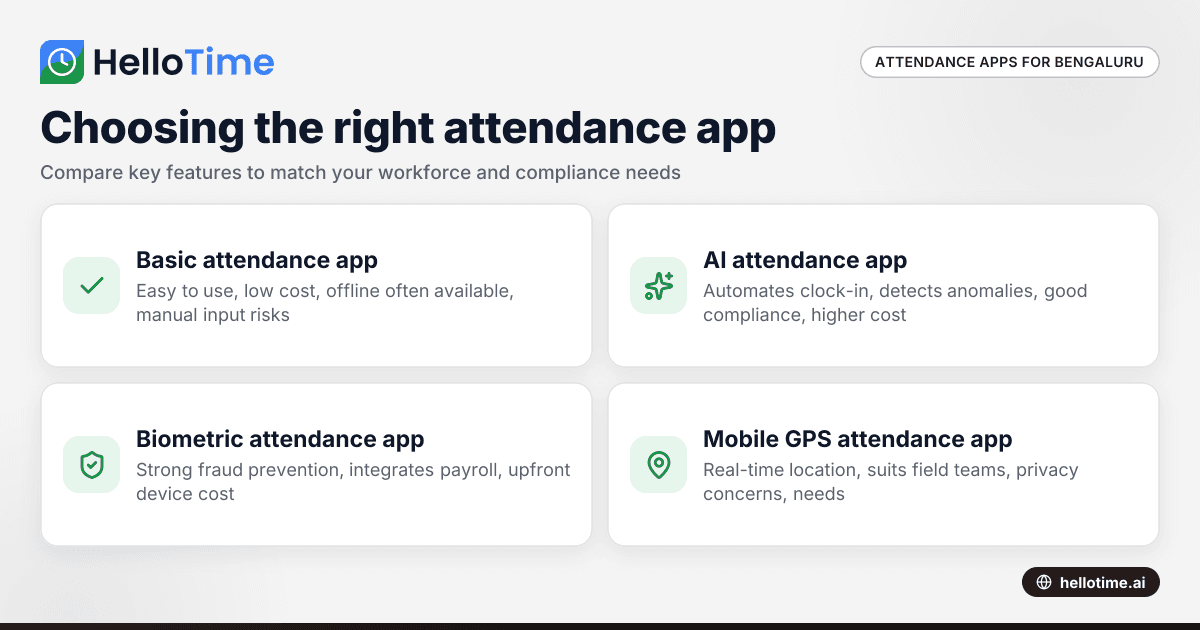
Choosing the Right Attendance App for Small Businesses in Bengaluru
Choosing the Right Attendance App for Small Businesses in Bengaluru ===================================================================== If you run.
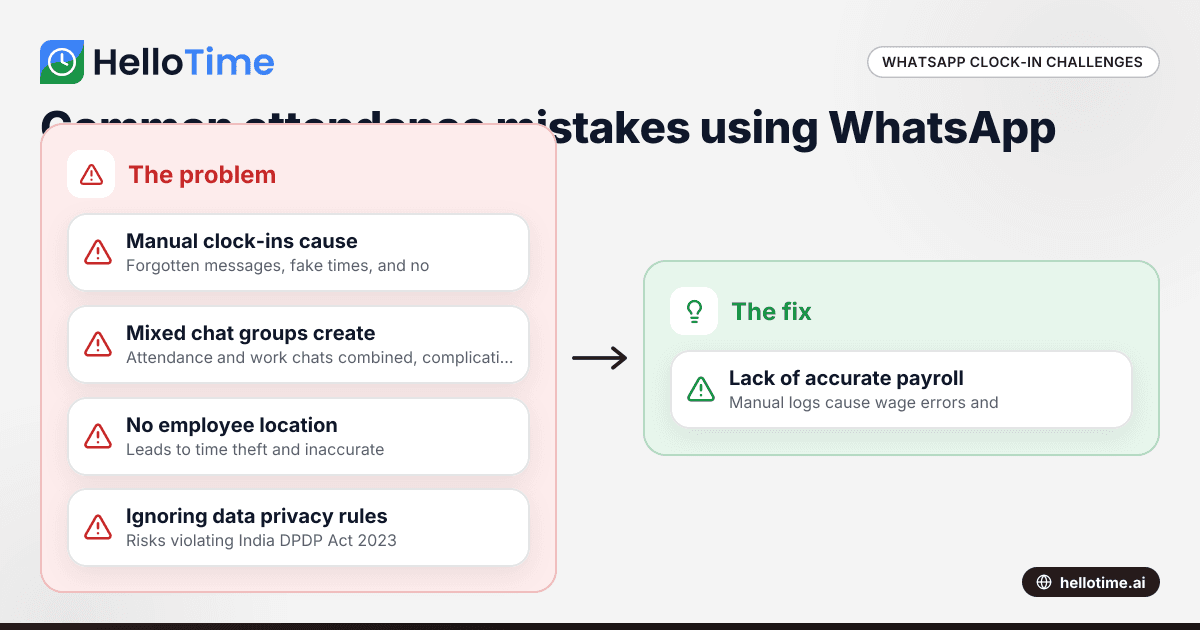
Using WhatsApp for Clock-In and Attendance Tracking in Indian Small Businesses
Using WhatsApp for Clock-In and Attendance Tracking in Indian Small Businesses The cost of managing attendance poorly can be high for small.