User Permissions for Timesheet Approval Workflow in United States: How Small Businesses Can Control Who Enters, Reviews, and Approves Hours
User permissions in a timesheet approval workflow decide who can enter hours, edit records, review submissions, approve time, and make final payroll.
The HelloTime team
12 min read
On this page
User permissions in a timesheet approval workflow decide who can enter hours, edit records, review submissions, approve time, and make final payroll or billing changes. For small businesses in the United States, clear permissions reduce payroll mistakes, stop unauthorized edits, and create a cleaner audit trail when managers, HR, and operations teams share responsibility.
Key takeaways
- A strong user permissions timesheet approval workflow separates entry, review, approval, and export duties.
- Small businesses should assign permissions by role, not by person, so the process scales as teams grow.
- Limit who can edit approved timesheets, backdate entries, or override overtime and break records.
- Approval rules should match how your business runs, whether you manage billable projects, shifts, field teams, or job sites.
- Good permissions improve accountability, reduce buddy punching risk, and make payroll and invoicing easier to verify.
- Any discussion of wage and hour rules is general information, not legal advice.
Why user permissions matter in timesheet approvals
Timesheets affect payroll, client invoices, labor costs, and job profitability. That makes access control more important than many small businesses first assume.
If everyone can edit hours at any time, mistakes spread fast. An employee may correct a missed punch after approval. A supervisor may approve their own time without review. An admin may change job codes without a record of who made the change. Each of those actions creates risk.
A good user permissions timesheet approval workflow solves this by setting boundaries. It answers simple but critical questions:
- Who can clock in and out?
- Who can add missed time?
- Who can review entries before approval?
- Who can approve regular hours?
- Who can approve overtime?
- Who can reopen an approved timesheet?
- Who can export time for payroll or invoicing?
For a Chicago marketing agency, this may mean account managers review billable project time while finance checks client codes. For a Houston field service company, dispatch may review job hours while branch managers approve overtime. For a Detroit manufacturer, line supervisors may approve shift attendance while HR controls policy exceptions.
The principle is the same. The person doing the work should not always be the same person who gives final approval.
What should a timesheet approval workflow control?
A timesheet workflow should control more than the final approve button. It should govern the full life cycle of time data.
Time entry permissions
These permissions define how hours get into the system. Examples include:
- Clock in and out from mobile, web, or kiosk
- Add manual time entries
- Select a project, job, location, or cost code
- Edit start and end times
- Record breaks
- Add notes or attachments
This is where many businesses need the most structure. If employees can freely enter time days later with no checks, records become less reliable.
Review permissions
Review is not always the same as approval. A reviewer may check for completeness, missing punches, wrong job codes, or unusual hours without issuing final approval.
This is useful when payroll, operations, and department managers share responsibilities. It creates a staging step before time becomes final.
Approval permissions
Approvers confirm that hours are ready for payroll, billing, or both. They may approve:
- Daily time entries
- Weekly timesheets
- Shift attendance
- Overtime requests
- Billable hours for client work
Approval rights should usually be limited to direct supervisors, department heads, or designated managers.
Exception and override permissions
These are the highest-risk actions. They include:
- Editing approved timesheets
- Backdating entries
- Approving your own time
- Changing overtime classifications
- Overriding break deductions
- Reassigning hours to another worker, project, or location
Only a small number of trusted users should have these permissions.
Who should be able to enter, review, and approve hours?
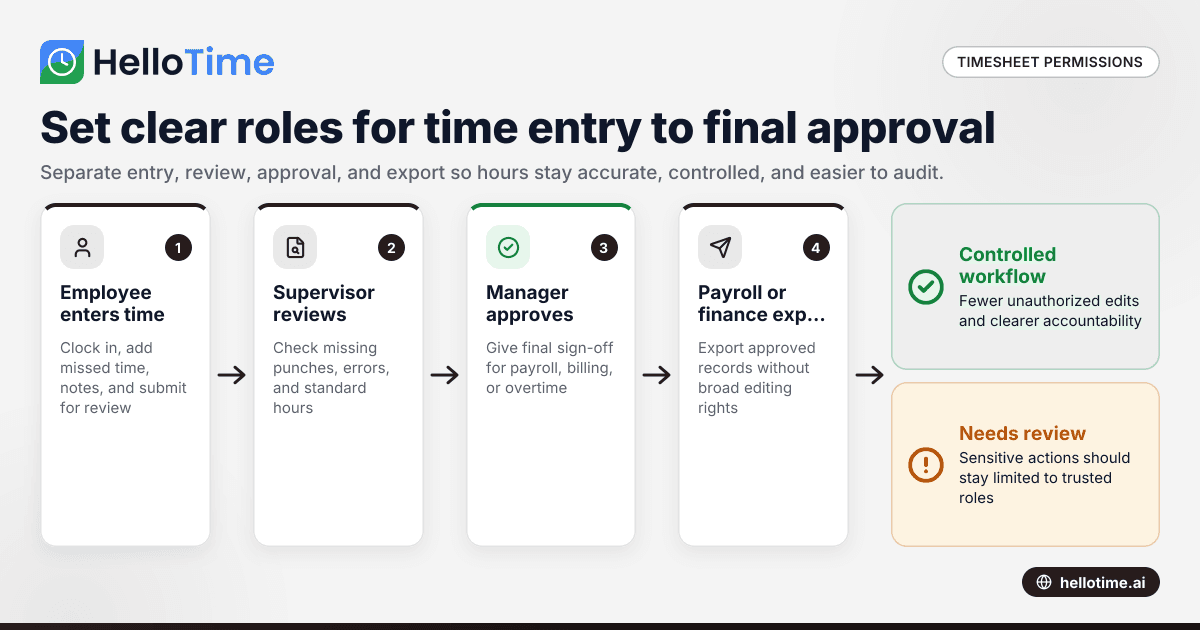
Employees should enter time, supervisors should review it, and managers or designated approvers should give final approval. In small businesses, one person may cover two roles, but final sign-off should still stay limited to people accountable for labor cost, attendance, or billing accuracy.
That simple model works because it separates duties. Employees know the work they completed. Supervisors know whether the hours look reasonable. Managers know whether the time should become final for payroll or customer billing.
A simple role model for small businesses
Most small and mid-sized companies can start with five basic roles.
1. Employee
The employee should usually be able to:
- Clock in and out
- Enter missed time requests
- View their own timesheets
- Add notes
- Submit timesheets for review
They should usually not be able to:
- Approve time
- Edit approved records
- View other employees' hours
- Change payroll exports
2. Supervisor
A supervisor often needs to:
- Review direct reports' time
- Flag missing entries
- Correct obvious errors
- Approve standard hours
- Reject and return timesheets for fixes
They may or may not be allowed to approve overtime, depending on your policy.
3. Department manager
A manager may need broader control, such as:
- Approving overtime
- Approving exceptions
- Seeing labor hours across a team or location
- Reopening a timesheet during the same pay period
This role should still be scoped. A retail store manager should not need access to all locations if they only run one store.
4. HR or payroll admin
This role often needs visibility across teams, but not unlimited edit power. HR or payroll may need to:
- Audit submissions
- Check missing approvals
- Export approved time
- Review leave and attendance conflicts
Many businesses make the mistake of giving payroll full editing rights. In practice, payroll often needs reporting and export access more than broad change authority.
5. System administrator
This should be a very small group. Admins may manage:
- Permission settings
- Approval chains
- Locations and teams
- Workflow rules
- Audit access
System admins should be rare because broad access increases risk.
How do you set up permissions without slowing everyone down?
Start with the fewest permissions needed for each role. Then add only what a role truly needs to do its job. This keeps approvals moving while limiting rework, unauthorized edits, and confusion over who owns the next step.
Use least-privilege access
Least privilege means each role gets only the minimum access required. This keeps the process simple.
For example, a front desk manager in a hospitality business may need to approve shift attendance for one location. They likely do not need company-wide reporting or the ability to edit prior pay periods.
Scope access by team, location, or project
Permissions should match how your business operates.
Examples:
- Agency teams by client account or project
- Retail staff by store
- Construction crews by job site
- Field service technicians by branch
- Manufacturing teams by plant or department
This reduces unnecessary visibility and lowers the chance of cross-team mistakes.
Separate review from final approval
Many errors are caught before final approval. A reviewer can check for missing punches, location mismatches, or incorrect project tags. The final approver can then focus on sign-off instead of cleanup.
This is especially useful for businesses with many hourly workers or multiple locations.
Lock records after approval
Approved time should not remain open for casual edits. If a change is needed, it should go through a controlled reopen or adjustment process.
That single rule prevents many payroll disputes.
What permissions cause the most timesheet problems?
The riskiest permissions are self-approval, editing approved time, backdating entries, and broad admin access. These permissions can create payroll errors, billing disputes, and weak audit trails if they are assigned too widely or used without review.
Self-approval
A supervisor should not usually approve their own timesheet. If that cannot be avoided in a very small business, a second reviewer should still check exceptions.
Editing approved time
This should be restricted tightly. If approved records can be changed freely, your approval step loses meaning.
Backdating and missed punches
Employees often need a way to request fixes. That does not mean they should directly alter past records without review. A request-and-approve model works better.
Broad visibility across the company
Not every manager needs to see every employee's hours, pay-related records, or attendance details. Keep access limited to the teams they manage.
Unlimited admin rights
Too many admins create confusion. If everyone can change workflow rules, no one truly owns them.
How do you set up a practical approval flow for a U.S. small business?
Map time sources, define approval stages, list sensitive actions, and assign access by role. Keep the flow short, lock approved records, and test real exceptions before rollout so managers follow the process instead of bypassing it.
A workable workflow should fit your real operating model. It should not force extra steps that managers ignore.
Step 1: Map your sources of time
Identify how time is captured:
- Mobile clock-in
- Web timesheets
- Tablet kiosk attendance
- Manual entries for exceptions
- Billable time entries by project team members
If you have multiple sources, your permissions must cover each one.
Step 2: Define approval stages
Use the fewest stages that still create control. A common structure is:
- Employee submits time
- Supervisor reviews completeness
- Manager approves
- Payroll or finance exports approved records
For client-billable teams, finance may also review billable codes before invoicing.
Step 3: List sensitive actions
Write down the actions that should require special permission, such as:
- Approving overtime
- Reopening approved weeks
- Editing prior pay periods
- Reassigning hours between jobs
- Exporting time to payroll or invoicing
This list helps you avoid accidental over-permissioning.
Step 4: Assign permissions by role, not person
Do not build your process around one trusted employee. People change jobs, take leave, and leave the business.
Role-based permissions are easier to maintain and audit.
Step 5: Test with real exceptions
Before going live, test common edge cases:
- Missed punches
- Overnight shifts
- Travel between job sites
- Manager absences
- Late project coding
- Timesheets submitted after cutoff
If your workflow breaks during normal exceptions, it needs adjustment.
Role-based permissions vs individual access rules
Role-based permissions are usually better for small businesses because they are easier to manage. Individual exceptions should be rare.
Why role-based permissions work better
Role-based access gives consistency. Every store manager, project lead, or branch supervisor gets the same basic level of access.
That helps when you:
- Open a new location
- Hire new managers
- Reorganize teams
- Cover for employee absences
It also reduces errors caused by old, custom permissions left behind after staffing changes.
When custom access makes sense
Sometimes a business needs limited exceptions. For example:
- A regional manager covers three stores
- A finance lead reviews one business unit only
- A project director approves one major client portfolio
Keep these exceptions documented. Review them regularly.
Where ai user permissions can help
As software gets smarter, ai user permissions can help flag unusual access patterns, suggest cleaner role designs, or highlight when one user has conflicting approval powers. The goal is not to replace management judgment. The goal is to make risky permission setups easier to spot early.
How can HelloTime help organize approval control?
HelloTime can centralize time capture, approvals, attendance, leave, and scheduling in one system with role-based access. That makes it easier to limit edits, set approval paths, and keep a clear record of who submitted, reviewed, changed, and approved time.
If you want one system for time capture, timesheets, attendance, leave, shift scheduling, and approvals, it helps to use software designed around roles and workflow control. HelloTime gives businesses tools for time tracking, approvals, location-based attendance, and workforce management in one place.
That matters when teams are spread across job sites, stores, offices, or client projects. You can set up workflows that reflect how your business actually runs instead of relying on spreadsheets, emails, and side approvals. You can explore the available features or learn more about HelloTime in the US if you are reviewing options for a United States team.
How user permissions support payroll, billing, and audit readiness
Timesheet approval is not just an HR task. It affects several business outcomes at once.
Payroll accuracy
Approved hours feed payroll inputs. Even if your payroll system is separate, your timesheet records still shape regular hours, overtime review, leave balances, and attendance corrections.
A controlled workflow reduces last-minute changes before payroll runs.
Client billing accuracy
For agencies, consultants, and service teams, billable hours need tighter controls. A project lead may confirm the work happened, while finance checks whether the time is billable and coded correctly before invoicing.
Bad permissions can create write-offs, invoice disputes, or underbilling.
Audit trails
A useful timesheet system should show:
- Who entered the time
- Who changed it
- When it was submitted
- Who reviewed it
- Who approved it
- Whether it was reopened later
That history matters during internal reviews and employee disputes. It also helps answer buyer questions about operational controls, especially when larger customers expect mature processes and may ask about controls similar to SOC 2 practices.
Common mistakes small businesses make
Giving managers too much access
Managers often need approval rights, not full admin rights. Keep policy settings and workflow changes restricted.
Letting payroll fix everything
Payroll teams often become the cleanup crew for bad approvals. That creates bottlenecks and weakens manager accountability.
Ignoring location-based control
A multi-location business should not run one flat permission model if managers only oversee one branch or site.
Forgetting temporary coverage rules
Managers go on vacation. Build backup approvers in advance instead of sharing passwords or using one generic admin account.
Never reviewing permissions
Access should be reviewed after promotions, transfers, terminations, and reorganizations.
A simple checklist to improve your workflow this month
Use this checklist to tighten control without making your process heavy:
- List every person who can edit timesheets.
- Remove approval rights from anyone who does not need them.
- Separate time entry, review, and final approval.
- Lock approved periods from casual edits.
- Restrict overtime overrides and backdated changes.
- Scope access by team, location, or project.
- Assign backup approvers for absences.
- Review permissions after staffing changes.
- Keep an audit trail for edits and approvals.
- Test the process before your next payroll cycle.
A better workflow does not need to be complicated. It just needs clear ownership.
If you want to see how HelloTime supports time tracking, approvals, attendance, and workforce management, explore the features or compare options on the pricing page.
Frequently asked questions
What is a user permissions timesheet approval workflow?
It is the set of rules that controls who can enter time, review entries, approve hours, and change records later. The goal is to protect payroll and billing accuracy while keeping accountability clear.
Should employees be able to edit approved timesheets?
Usually, no. Employees should be able to request changes, but approved timesheets should be locked and reopened only through a controlled process.
Read next
This article covers one part of a bigger topic. For the complete picture, read our guide to user mo.
Keep reading
Related articles
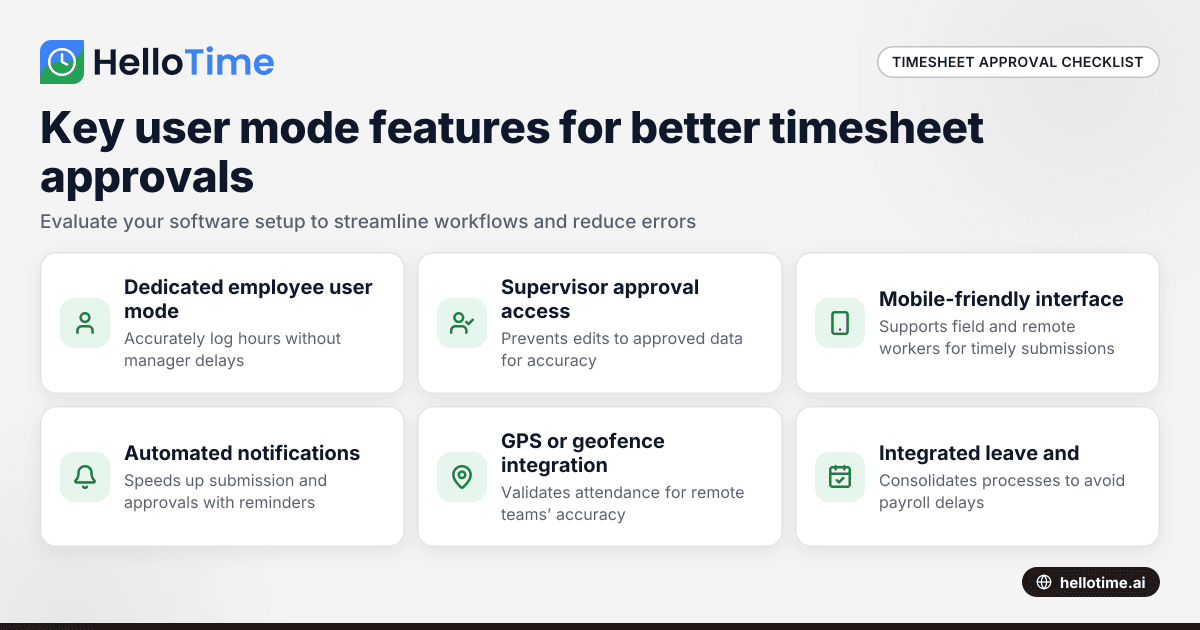
How User Mode Enhances Timesheet Approval Workflow for Indian Small Businesses
How User Mode Enhances Timesheet Approval Workflow for Indian Small Businesses.
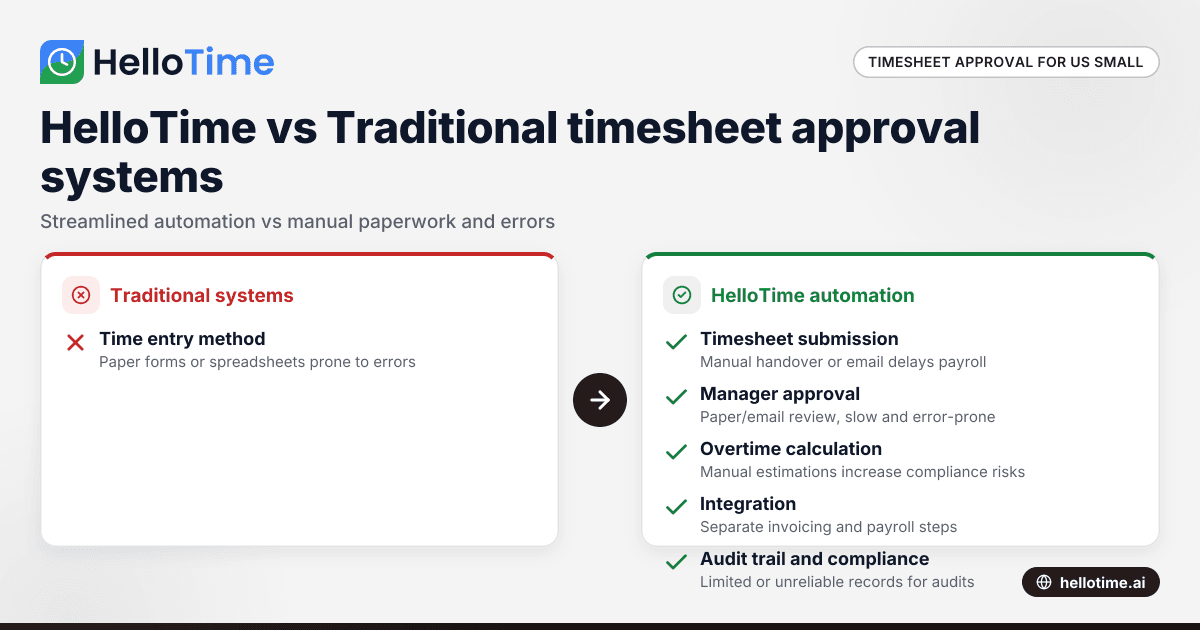
HelloTime vs Traditional Timesheet Approval Systems: Advantages for United States Small Businesses
HelloTime vs Traditional Timesheet Approval Systems: Advantages for United States Small Businesses When comparing HelloTime vs traditional timesheet.
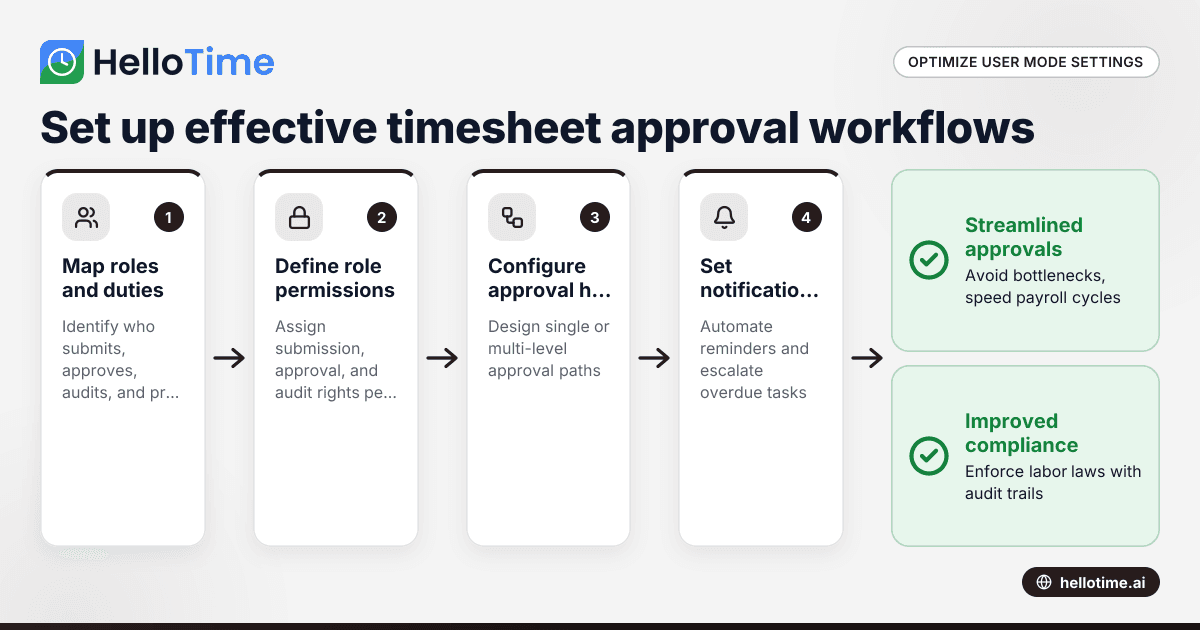
How United States Small Businesses Can Optimize User Mode Settings to Streamline Timesheet Approval Workflows
In timesheet approval workflows, user mode customizes access and approval steps based on employee roles, allowing roles like employees, managers, and.