User Roles in Timesheet Software in the United States: How Small Businesses Can Limit Edits, Approvals, and Visibility by Team
User roles in timesheet software decide who can enter time, edit records, approve hours, view pay-related data, and run reports. For small businesses.
The HelloTime team
12 min read
On this page
User roles in timesheet software decide who can enter time, edit records, approve hours, view pay-related data, and run reports. For small businesses in the United States, clear roles reduce payroll mistakes, stop unauthorized edits, and give each team only the access they need.
Key takeaways
- User roles timesheet software should separate entry, review, approval, and reporting rights.
- Small businesses usually need at least admin, manager, employee, and payroll or finance roles.
- The best setup limits edits by date, location, project, and team, not just by job title.
- Approval chains should match how your business works, such as by supervisor, department, or client project.
- Visibility matters as much as editing rights. Many problems start when people can see data they do not need.
- Role-based controls are especially useful for agencies, retail, hospitality, field service, construction, and manufacturing teams.
Why user roles matter in timesheet software
If everyone can edit everything, timesheets become hard to trust. A manager may approve hours that change later. A payroll admin may export data without knowing a supervisor made a last-minute correction. An employee may see billable rates or labor costs that should stay private.
That is why user roles timesheet software matters. Roles create clear boundaries. Employees log time. Supervisors review it. Managers approve it. Finance or payroll exports it. Owners can see everything without being part of every daily step.
For a small business in Chicago, that can mean fewer disputes over missed punches and overtime. For a field service team in Houston, it can mean dispatch leads see attendance by crew, while accounting sees only approved hours. For a manufacturer in Detroit, it can mean line supervisors approve attendance for their shift, while plant leadership sees labor summaries by department.
Good role design also improves speed. People stop asking, “Who can fix this?” or “Why can I see this project?” Everyone knows their lane.
What should user roles control?
At a minimum, roles should control five things:
Time entry
- Can a user clock in and out?
- Can they enter manual time?
- Can they track time against certain clients, jobs, or cost codes?
Editing
- Can they edit only their own entries?
- Can they edit past days?
- Can they edit approved timesheets?
Approvals
- Can they review timesheets for a direct report?
- Can they approve by team, location, or project?
- Can they send entries back for correction?
Visibility
- Can they view only their own hours?
- Can they see the whole department?
- Can they view bill rates, labor costs, and profitability?
Exports and downstream actions
- Can they lock a period?
- Can they export hours to payroll or invoicing workflows?
- Can they run reports for management?
Without those controls, one person often becomes the bottleneck. In many spreadsheet-based setups, that person is an owner, office manager, or HR lead. Role-based access spreads work safely.
Which roles do most small businesses in the United States need?
Most small businesses do not need a complex permission map. They need a simple structure that mirrors who does the work and who reviews it.
A practical starting point looks like this:
1. Employee or crew member
This role should be the most limited. Employees usually need to:
- clock in and out
- add notes to a shift or timesheet
- view their own hours
- request leave
- correct their own unapproved entries
They usually should not be able to:
- approve time
- edit approved records
- view labor cost data
- see other teams’ hours
This matters in shift-based businesses. A restaurant server should not see kitchen staff attendance. A service technician should not see another region’s timesheets.
2. Supervisor or team lead
This role works well for frontline managers. They often need to:
- view their team’s entries
- fix missed punches
- review attendance exceptions
- approve daily or weekly time
- see only their assigned location, shift, or crew
A supervisor usually should not:
- change company-wide settings
- see payroll details for all departments
- approve teams they do not manage
This keeps control close to operations. The person who actually saw the employee work can validate the hours.
3. Department manager or operations manager
This role needs broader visibility. They may manage several supervisors or locations. They often need to:
- approve by department or cost center
- run labor reports
- compare scheduled hours to actual hours
- review overtime trends
- reopen a timesheet when needed
This role is useful in retail chains, multi-site hospitality groups, and manufacturing teams with multiple shifts.
4. Payroll, HR, or finance admin
This role usually needs trusted access to approved data, not open editing rights. They may need to:
- view approved timesheets
- export approved hours
- verify leave balances
- prepare invoices from billable time
- run audit reports
They often should not:
- change old punches without an audit trail
- approve their own department’s time without review
- edit schedules for operations teams
In many small businesses, payroll and HR need access to approved records, but not broad operational control.
5. Owner or system admin
This role should be limited to a very small number of people. It often includes:
- company settings
- role setup
- access rules
- full reporting
- final overrides in unusual cases
Too many admins create confusion. If six people can change permissions, no one knows which rule is current.
How do you decide who can edit past timesheets?
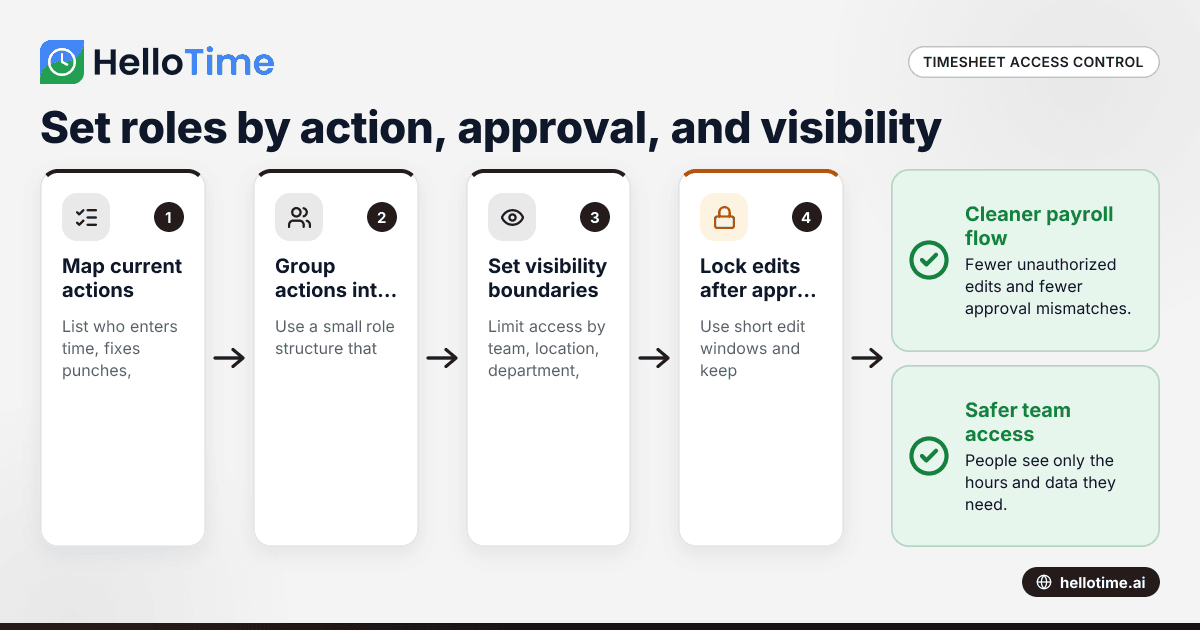
Set a short edit window for employees and a slightly wider one for supervisors. Lock approved periods, and require a reason for any later change.
That simple rule prevents most timesheet disputes. It also creates a clean audit trail.
Start with edit windows
A small business does not need to allow open-ended edits. A better model is:
- Employees can edit their own unapproved time until the end of the pay period or a set cutoff.
- Supervisors can correct missed punches for a short period after submission.
- Approved timesheets are locked for everyone except a small admin group.
- Any post-approval change should be logged with user name, timestamp, and note.
This setup solves a common problem. A worker remembers a missed punch from last Tuesday and changes it after approval. Payroll then processes a different version from the one the supervisor approved. Locked periods prevent that mismatch.
Match edit rights to business risk
Not every business has the same risk. An agency billing clients by the hour cares about unauthorized changes to billable records. A construction company cares about job costing and crew attendance. A restaurant may care more about missed punches and shift compliance.
Think about the records that affect money:
- payable wages
- billable client hours
- overtime review
- project costing
- attendance compliance
Those records deserve tighter controls than a simple note field.
Use exceptions, not broad permissions
A common mistake is giving managers full edit rights because a few employees often forget to clock out. A better answer is to allow specific corrections for specific teams.
That is where thoughtful ai user roles can help inside modern systems. Instead of making one broad manager role, businesses can build smaller permission sets around the real work, such as “approve Team A,” “edit missed punches for Location 2,” or “view billable hours only.”
What visibility should each team have?
Each person should see only the timesheet, scheduling, and leave data they need to do their job. Visibility should follow reporting lines, locations, projects, and client boundaries.
Limit data by team, location, and project
Visibility controls are often overlooked. A business may lock editing but still expose too much information. That can create privacy issues, internal friction, or unnecessary confusion.
For example:
- A store manager in Houston should see only their store, not every location.
- A client services lead should see only the projects they manage.
- A field supervisor should see their crew, not office staff leave records.
- A contractor tracking billable hours should not see internal labor cost reports.
This matters in both hourly and salaried environments. Timesheets can contain more than hours. They may include job codes, comments, locations, approval notes, or billable information.
Separate operational data from financial data
Operations teams need one view. Finance teams need another.
A frontline manager often needs:
- total hours
- attendance exceptions
- overtime flags
- leave conflicts
Finance may need:
- approved labor totals
- billable versus non-billable time
- invoice-ready hours
- profitability data
Not every manager needs to see pay rates or margins. If they do not need it to run the team, it is safer to hide it.
Think about shared devices too
Visibility rules also matter on tablet kiosks and shared devices. If employees clock in on a shop-floor tablet, they should not be able to browse another person’s attendance history. Kiosk use should stay focused on clock-in and clock-out, not general records access.
How should approval workflows work for small businesses?
Approval workflows should follow the person who actually verifies the work. In most small businesses, that means a direct supervisor first, then a department manager or admin only if needed.
Choose the simplest chain that matches reality
Many businesses overbuild approvals. They create two or three layers when one is enough. That slows payroll and frustrates teams.
A practical setup is:
- Employee submits time.
- Direct supervisor reviews exceptions.
- Department manager approves only high-risk items, overtime, or disputed entries.
- Payroll or finance exports approved hours.
That keeps accountability close to the work. It also reduces approval delays.
Approve by team, not by company-wide access
A manager should approve only the groups they own. That might be:
- one location
- one client account team
- one crew
- one department
- one project
This is especially important when businesses grow from one site to several. The owner may have approved every timesheet when there were eight employees. At 35 employees across two cities, that no longer scales.
Handle exceptions with clear rules
Define who can resolve each issue:
- missed punch
- overlapping time
- overtime
- shift swap
- leave conflict
- timesheet submitted late
Clear exception rules reduce back-and-forth. They also stop the “everyone thought someone else approved it” problem.
Common mistakes when setting up user roles timesheet software
The biggest mistake is using one broad manager role for everyone. That usually gives too much visibility, too much edit power, or both.
Mistake 1: Too many admins
Small businesses often hand out admin access because it is convenient. But every admin can change settings, roles, or records. That makes audits harder and errors more likely.
Keep true admin access very limited.
Mistake 2: No difference between review and approval
Reviewing time is not the same as approving it. A supervisor may check that a shift happened. Payroll may still need a final approved status before export.
Separate those steps if payroll accuracy depends on it.
Mistake 3: Approved timesheets stay editable
This is one of the most common causes of payroll cleanup. Once a period is approved, it should be locked except for a documented correction path.
Mistake 4: Visibility is wider than necessary
A manager may need labor totals but not pay rates. An account lead may need billable hours but not company-wide attendance. Access should be specific.
Mistake 5: Roles do not match org changes
People change teams. Stores open. Clients move. Supervisors get promoted. Permission maps need regular review.
A good rule is to review roles whenever someone changes manager, location, or department.
A simple role setup template for a 25-person business
Here is a practical example for a 25-person business in the United States with office staff, field technicians, and one finance lead.
Role 1: Employee
- Track own time
- View own timesheets
- Request leave
- Edit own unapproved entries only
Role 2: Field supervisor
- View assigned crew
- Correct missed punches for crew
- Approve crew timesheets
- View attendance and overtime for crew only
Role 3: Office manager
- View office staff hours
- Approve office team timesheets
- See leave calendar for assigned department
Role 4: Operations manager
- View all field teams
- Run labor reports by location
- Reopen a timesheet with reason
- Approve overtime exceptions
Role 5: Finance admin
- View approved timesheets only
- Export hours for payroll workflows
- Review billable hour summaries
- Generate invoice support from approved time
Role 6: Owner or system admin
- Manage role settings
- View all reports
- Handle rare overrides
This setup is enough for many small businesses. It is simple, but it covers the main risks.
How to roll out role-based timesheet access without disruption
Start with your current process, then map permissions to real decisions. Do not begin with software settings. Begin with who does what today.
Step 1: List every action in your timesheet process
Write down:
- who enters time
- who fixes missed punches
- who approves
- who reviews overtime
- who exports hours
- who needs reports
This reveals overlap and confusion.
Step 2: Group actions into roles
Create a small number of roles. In most businesses, four to six is enough. More roles can work, but only if they stay easy to manage.
Step 3: Set visibility boundaries
Decide access by:
- team
- location
- department
- project
- client
This is often more useful than titles alone.
Step 4: Test edge cases
Before rollout, test common exceptions:
- an employee forgets to clock out
- a manager approves the wrong week
- someone transfers teams mid-pay period
- finance needs a corrected report after approval
Step 5: Train managers on what they should not do
Training should cover limits, not just tasks. Managers should know what they can approve, what they can edit, and when to escalate.
Step 6: Review after 30 days
Most role problems appear quickly. Review user feedback, approval bottlenecks, and correction patterns after the first month.
If you are evaluating tools, look at the features page to see how role-based time tracking, approvals, attendance, and reporting can work together for small teams in the United States.
A note on compliance and record control
Timesheet roles can support better recordkeeping, but software settings do not replace legal review. Rules on wage and hour practices can vary by federal, state, and local requirements in the United States, so this is general information, not legal or tax advice.
The practical point is simple. Better controls help preserve cleaner records. That supports payroll accuracy, manager accountability, and audit readiness. It also helps when buyers, clients, or finance partners ask for stronger internal controls or expect mature handling of operational data.
For many small businesses, role-based permissions are one of the easiest process upgrades to make. They reduce accidental changes, shorten approvals, and give each team a clearer view of what they own.
If you want to see how HelloTime supports time tracking, approvals, attendance, leave, and workforce controls for American businesses, explore HelloTime in the US or compare plans on the pricing page.
Read next
This article covers one part of a bigger topic. For the complete picture, read our guide to user mo.
Keep reading
Related articles
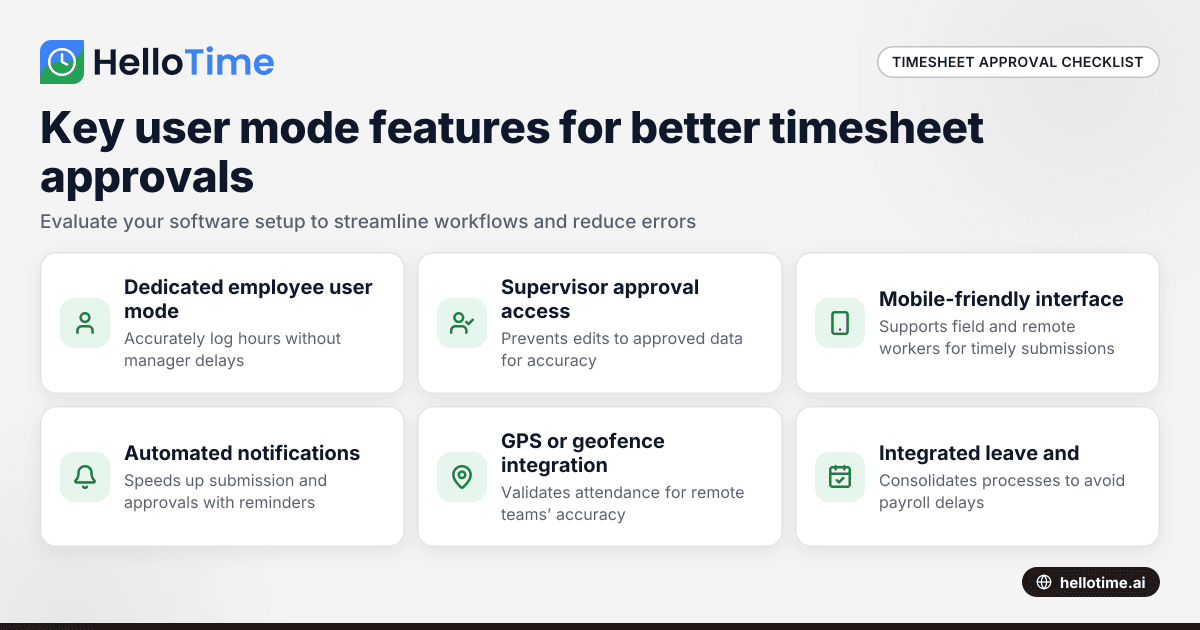
How User Mode Enhances Timesheet Approval Workflow for Indian Small Businesses
How User Mode Enhances Timesheet Approval Workflow for Indian Small Businesses.
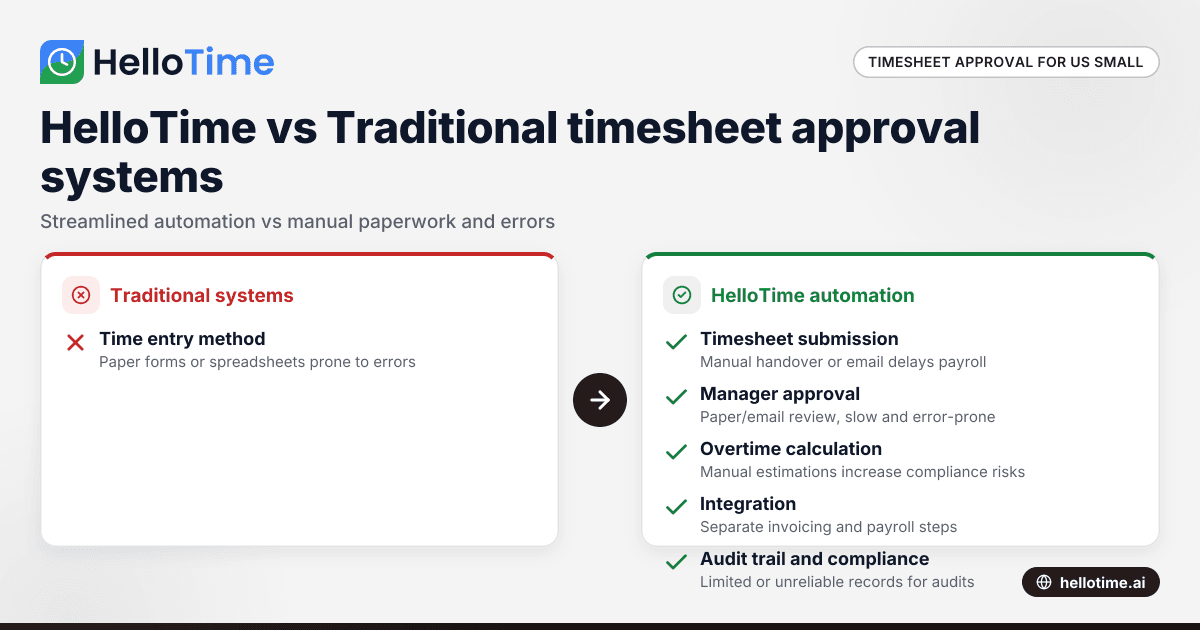
HelloTime vs Traditional Timesheet Approval Systems: Advantages for United States Small Businesses
HelloTime vs Traditional Timesheet Approval Systems: Advantages for United States Small Businesses When comparing HelloTime vs traditional timesheet.
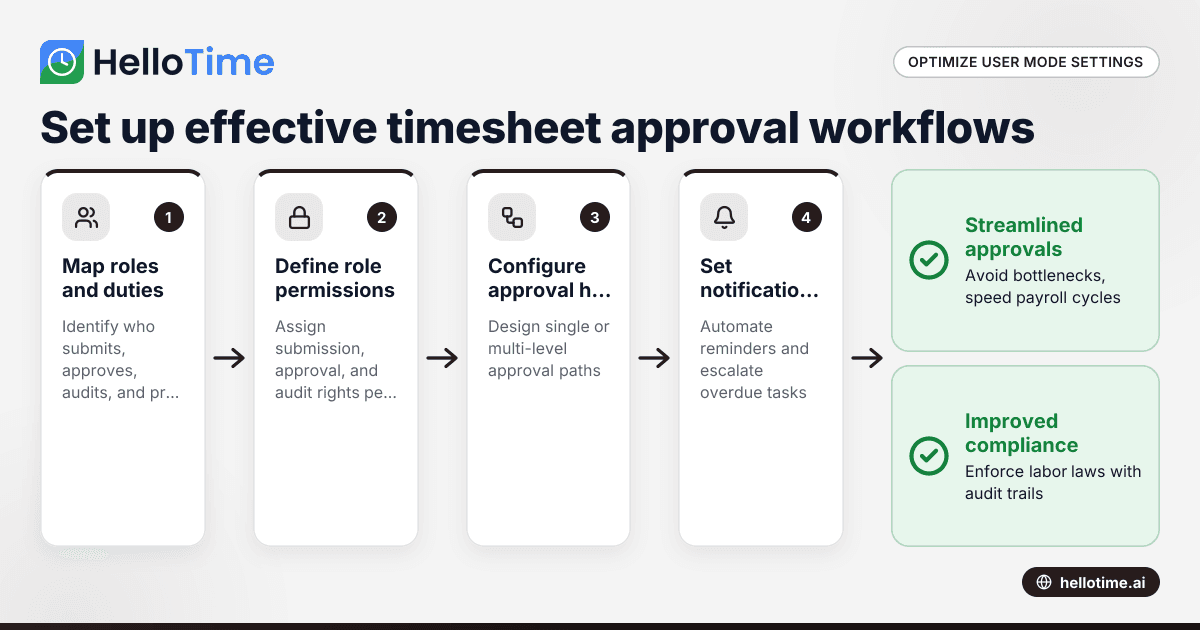
How United States Small Businesses Can Optimize User Mode Settings to Streamline Timesheet Approval Workflows
In timesheet approval workflows, user mode customizes access and approval steps based on employee roles, allowing roles like employees, managers, and.